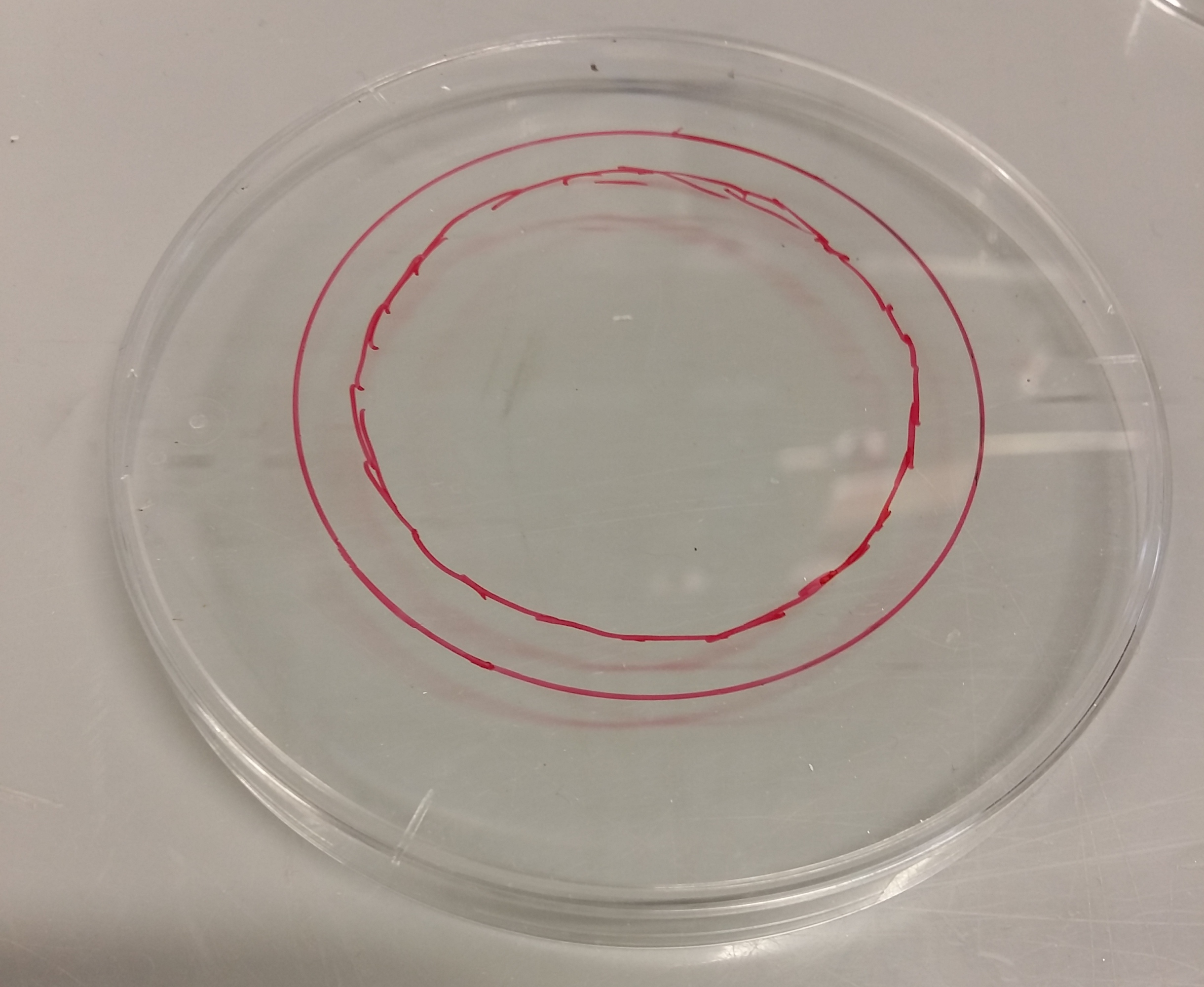
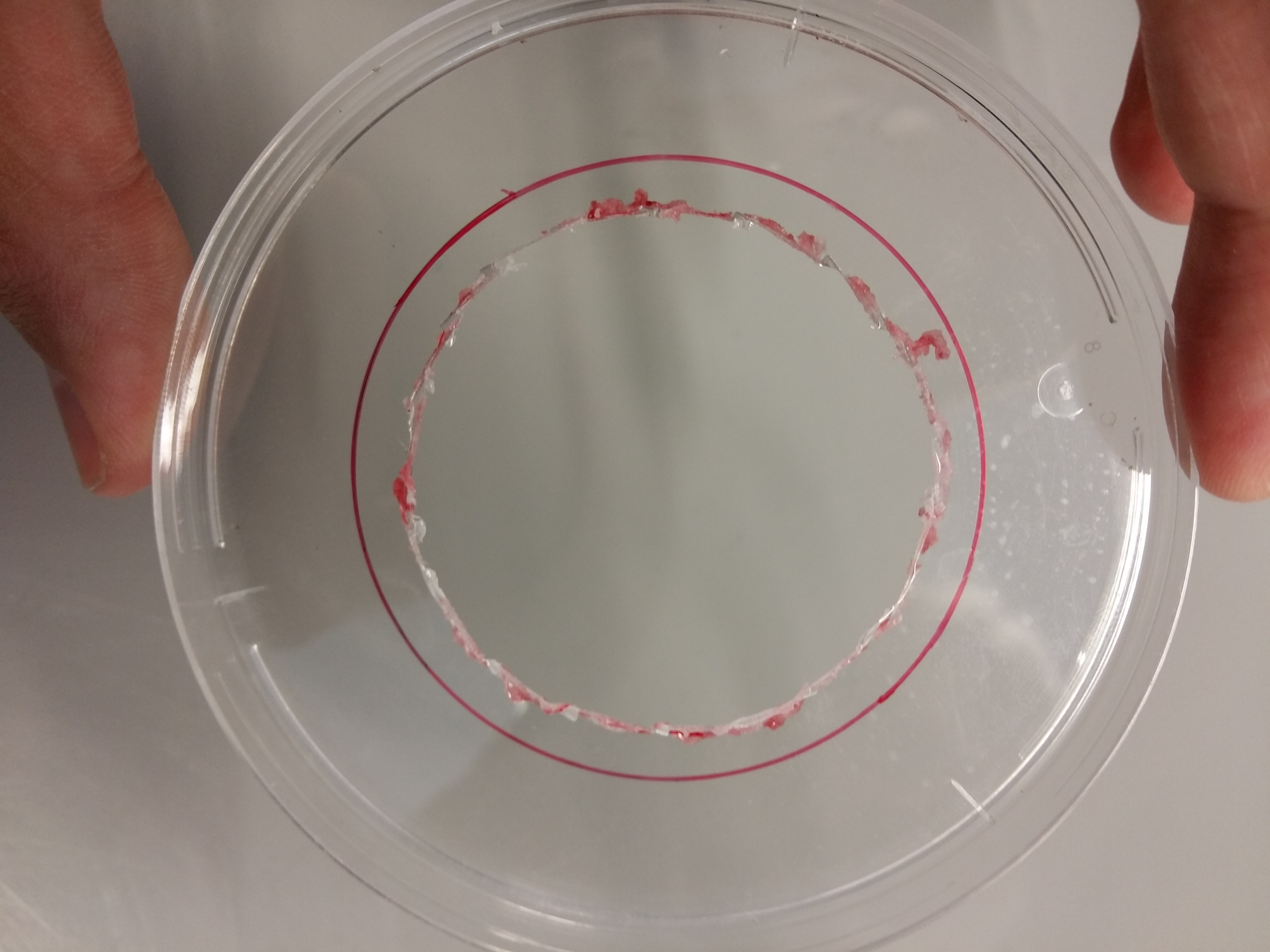
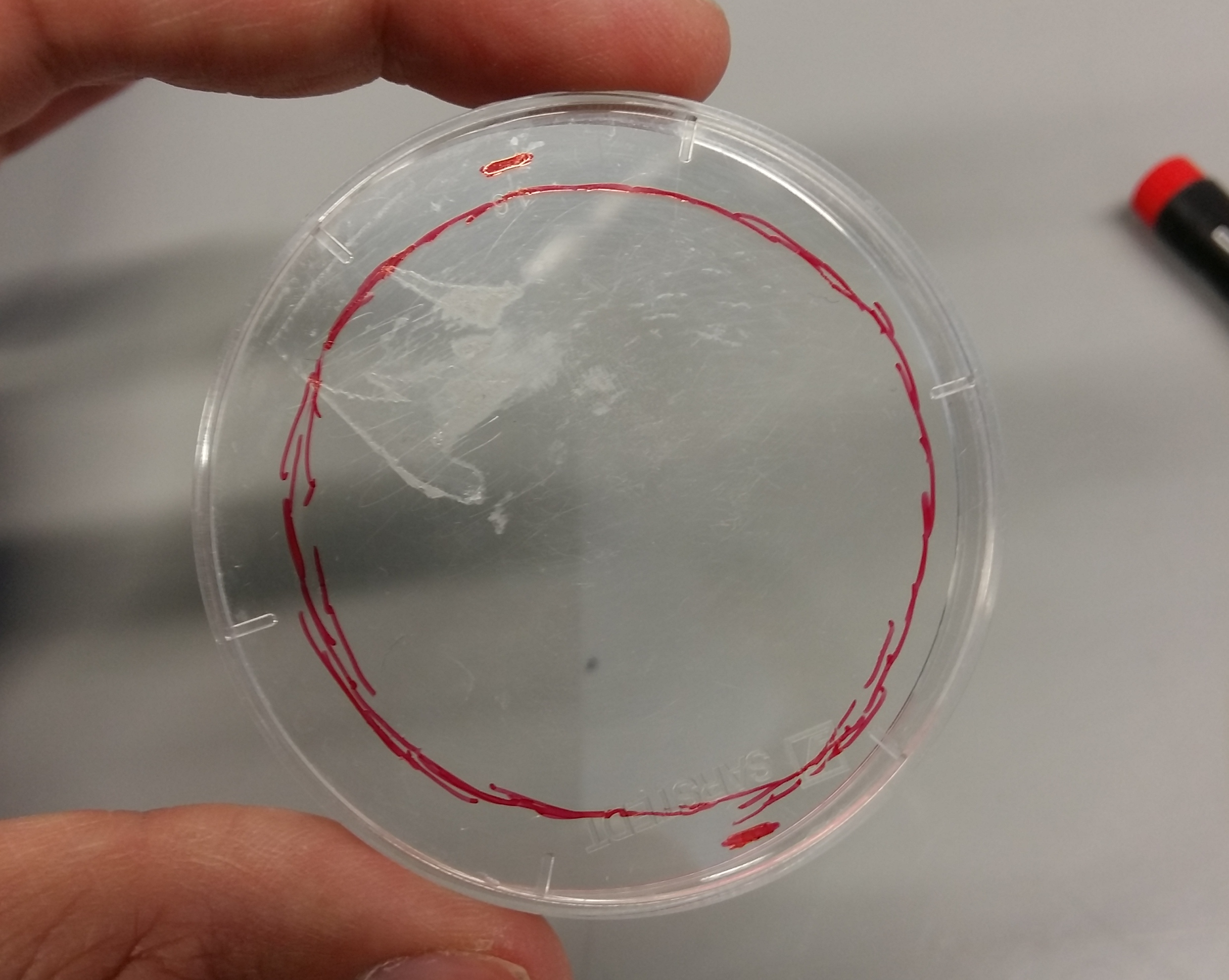
<?xml version="1.0" encoding="utf-8"?><feed xmlns="http://www.w3.org/2005/Atom" ><generator uri="https://jekyllrb.com/" version="3.10.0">Jekyll</generator><link href="/feed.xml" rel="self" type="application/atom+xml" /><link href="/" rel="alternate" type="text/html" /><updated>2026-06-19T17:49:31+00:00</updated><id>/feed.xml</id><title type="html">Mario Schädel</title><entry><title type="html">Convert LaTex to docx</title><link href="/latex-to-docx" rel="alternate" type="text/html" title="Convert LaTex to docx" /><published>2025-09-19T13:50:15+00:00</published><updated>2025-09-19T13:50:15+00:00</updated><id>/latex-to-docx</id><content type="html" xml:base="/latex-to-docx"><![CDATA[<h1 id="how-to-convert-a-latex-document-into-an-office-document-docx">How to convert a LaTex document into an Office document (docx)</h1>

<p>Here is what I learned from a frustrating situation with a paper that I submitted to a journal, where the author instructions allowed a LaTex submission but the editorial reality was different. This can work quite well and it is a <strong>much</strong> better solution than loading a PDF into your favorite word processor or Acrobat Pro, but expect to do some manual formatting after the conversion.</p>

<ul>
  <li>have pandoc and citeproc installed on your system</li>
  <li>convert vector figures into PNG files</li>
  <li>become familiar with how styles work in your word processor (I am using Libre Office)</li>
  <li>get a csl file (citation style language) of the journal, or one that is close enough</li>
  <li>forcefully insert a section called “References” in your LaTex document because otherwise it will not be there in the docx file</li>
  <li>if you use math symbols, expect them to be some special type of object in the office document (example: <code class="language-plaintext highlighter-rouge">$\dagger$</code>)</li>
  <li>use the commands below to convert</li>
  <li>check for more complicated in-text citations like (some fact; Author 1999) and correct them if necessary</li>
  <li>check if there are problems with the author name disambiguation (author first names popping up in in-text citations) and correct by hand if necessary</li>
</ul>

<p>There are approaches:
1) conversion without a reference document
2) conversion with a reference document</p>

<h2 id="without-a-reference-document">Without a reference document</h2>

<div class="language-plaintext highlighter-rouge"><div class="highlight"><pre class="highlight"><code>pandoc -f latex -t  docx  --bibliography=your_bibfile.bib --citeproc --csl=journalname.csl -o name_of_office_document.docx name_of_tex_file.tex 
</code></pre></div></div>

<p>This is the simplest method. You simply change the weird default style to your needs in the word processor. However, if you find that you might have to change something in the LaTex code, you may have to repeat many manual steps.</p>

<h2 id="with-a-reference-document">With a reference document</h2>

<div class="language-plaintext highlighter-rouge"><div class="highlight"><pre class="highlight"><code>pandoc -f latex -t  docx  --bibliography=your_bibfile.bib --citeproc --csl=journalname.csl --reference-doc=style_reference_document.docx -o name_of_office_document.docx name_of_tex_file.tex 
</code></pre></div></div>

<p>This approach has the benefit of being able to make changes in the LaTex file without having to repeat the formatting steps in the word processor. The downside is that your reference document might break certain things like reference formatting, if it is not how <code class="language-plaintext highlighter-rouge">pandoc</code> expects it to be.</p>

<p>If things are breaking, copy from the converted version without the reference document and inspect the style names. This might be especially important for tables.</p>

<p>Important: the bibliography style should be named “Bibliography” (not “Bibliography 1” as Libre Office names it).</p>

<p>If tables don’t render, check if they render in the converted version without the reference document.</p>]]></content><author><name></name></author><category term="academic" /><category term="stuff" /><summary type="html"><![CDATA[How to convert a LaTex document into an Office document (docx)]]></summary></entry><entry><title type="html">Stitching accurate panormas from macro photography images</title><link href="/macro_panorama_stitching" rel="alternate" type="text/html" title="Stitching accurate panormas from macro photography images" /><published>2023-11-13T14:00:00+00:00</published><updated>2023-11-13T14:00:00+00:00</updated><id>/macro_panorama_stitching</id><content type="html" xml:base="/macro_panorama_stitching"><![CDATA[<h1 id="stitching-accurate-panormas-from-macro-photography-images">Stitching accurate panormas from macro photography images</h1>

<h2 id="background">Background</h2>
<p>Stitching together images taken with a macro photography setup is not a trivial task. With some setups it is possible to use programs that are designed for microscopic images (very low distortion) like the <a href="https://imagej.net/plugins/grid-collection-stitching">Grid/Collection Stitching</a> plugin for <a href="https://imagej.net/">ImageJ</a>/<a href="https://imagej.net/software/fiji/">Fiji</a> or the <code class="language-plaintext highlighter-rouge">Montage all images in this layer</code> function in TrakEM2. However, as soon as there is noticeable distortion in the images, there will be artefacts if you attempt to blend the aligned images to a panoramic image.
Most panorama creators take into account the distiortion of the images. However, they also assume that the panorama was recorded by tilting the camera, which is not how one would record a panorama in macro photography. In macro photographic setups often a microscope table with X-Y drives or (motorized) X-Y stages are used to translate the photographed object. If the panorama creating sotware is unaware of this difference in recording, the alignment can fail or the stitched image might contain severe artifacts (which  may not even be noticed).
Fortunately, there is an open source program called <a href="https://hugin.sourceforge.io/">Hugin</a> that is capable of creating large panoramas and allows to precisely specify how the final image will be created, estimating and taking into account the distortion of the images and the translation movement. Hugin is forever free of charge and runs on all relevant modern operating systems such as Linux, Windows and MacOS.</p>

<h2 id="workflow-using-hugin">Workflow using <a href="https://hugin.sourceforge.io/">Hugin</a></h2>

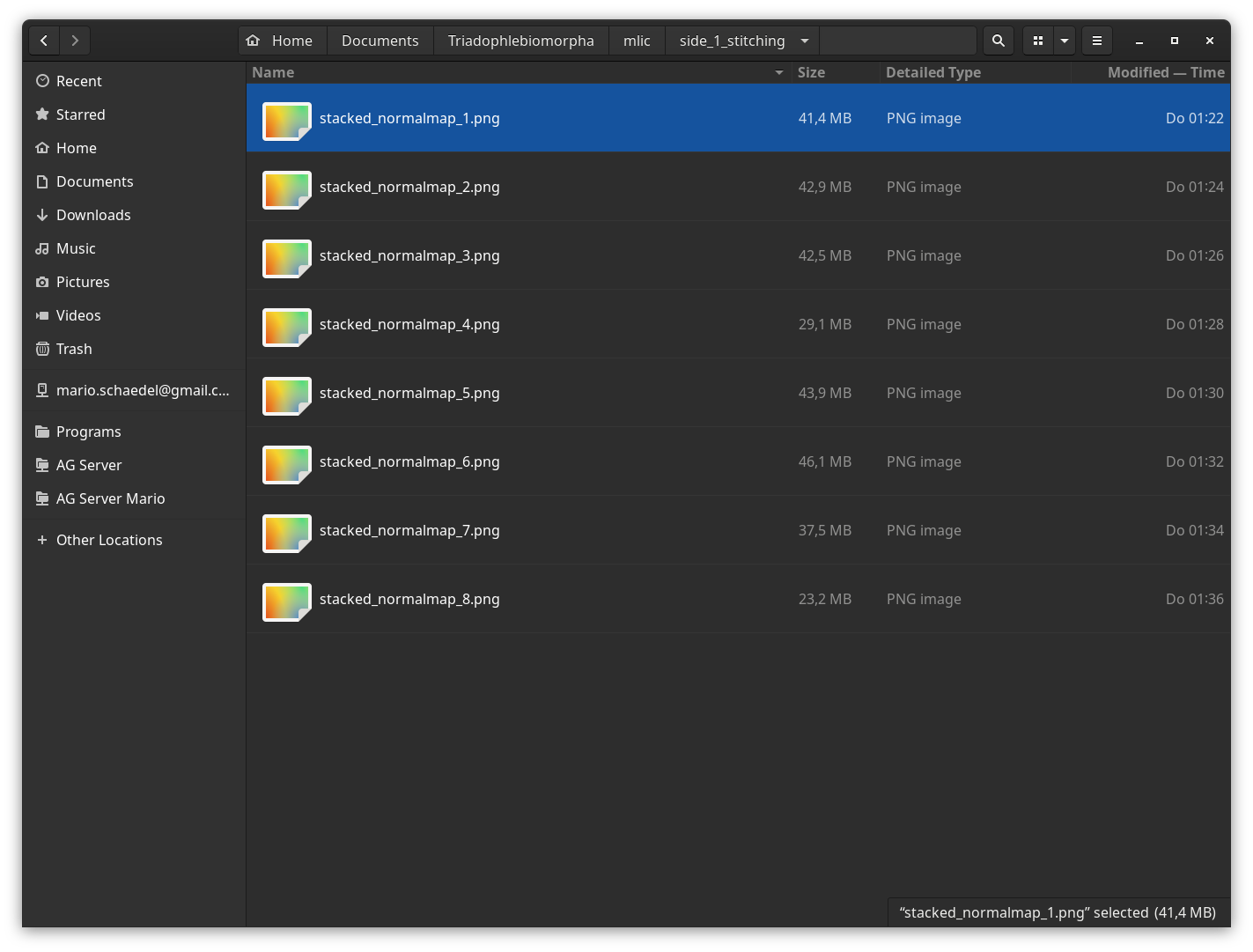
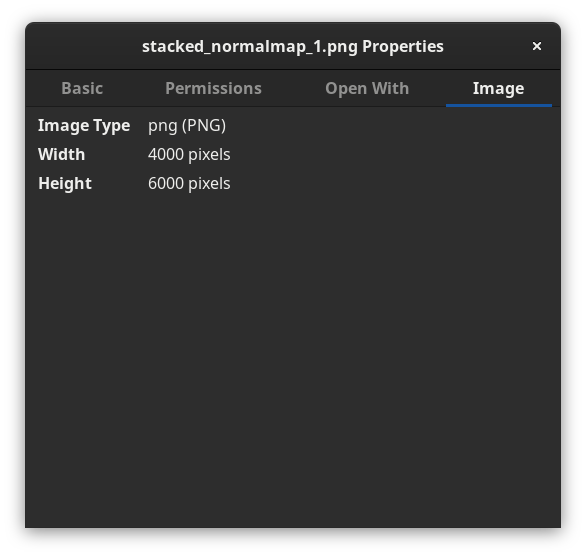
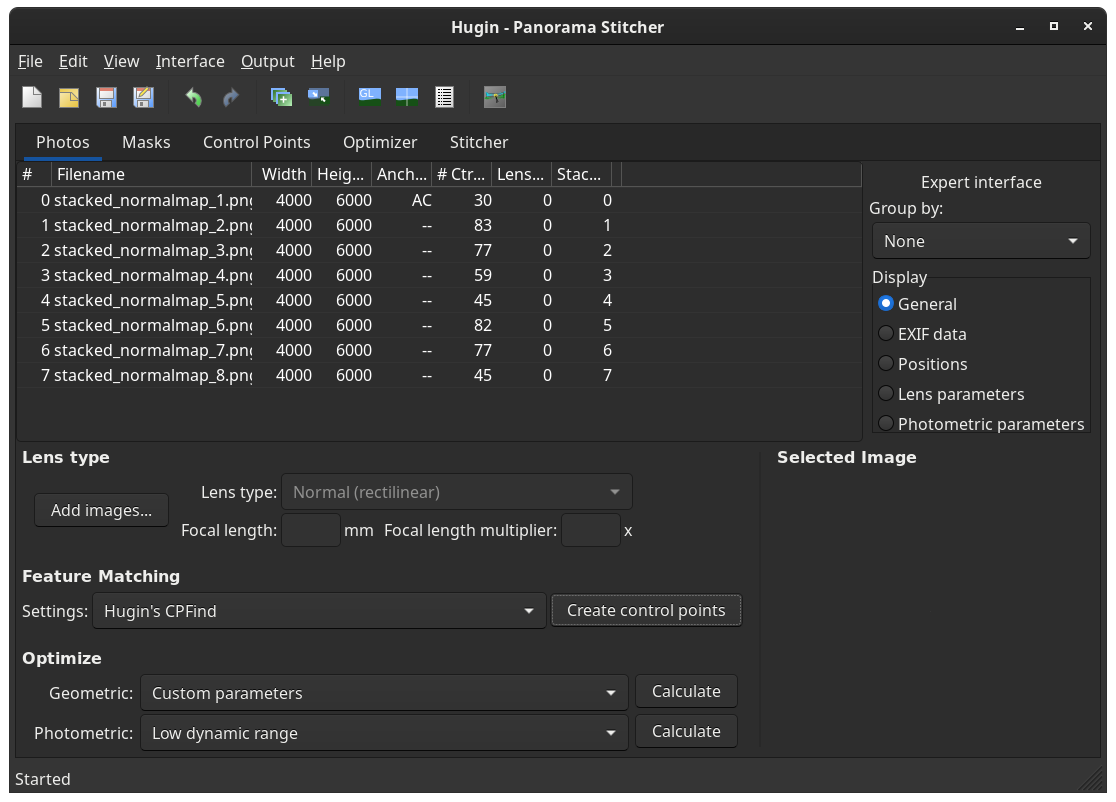
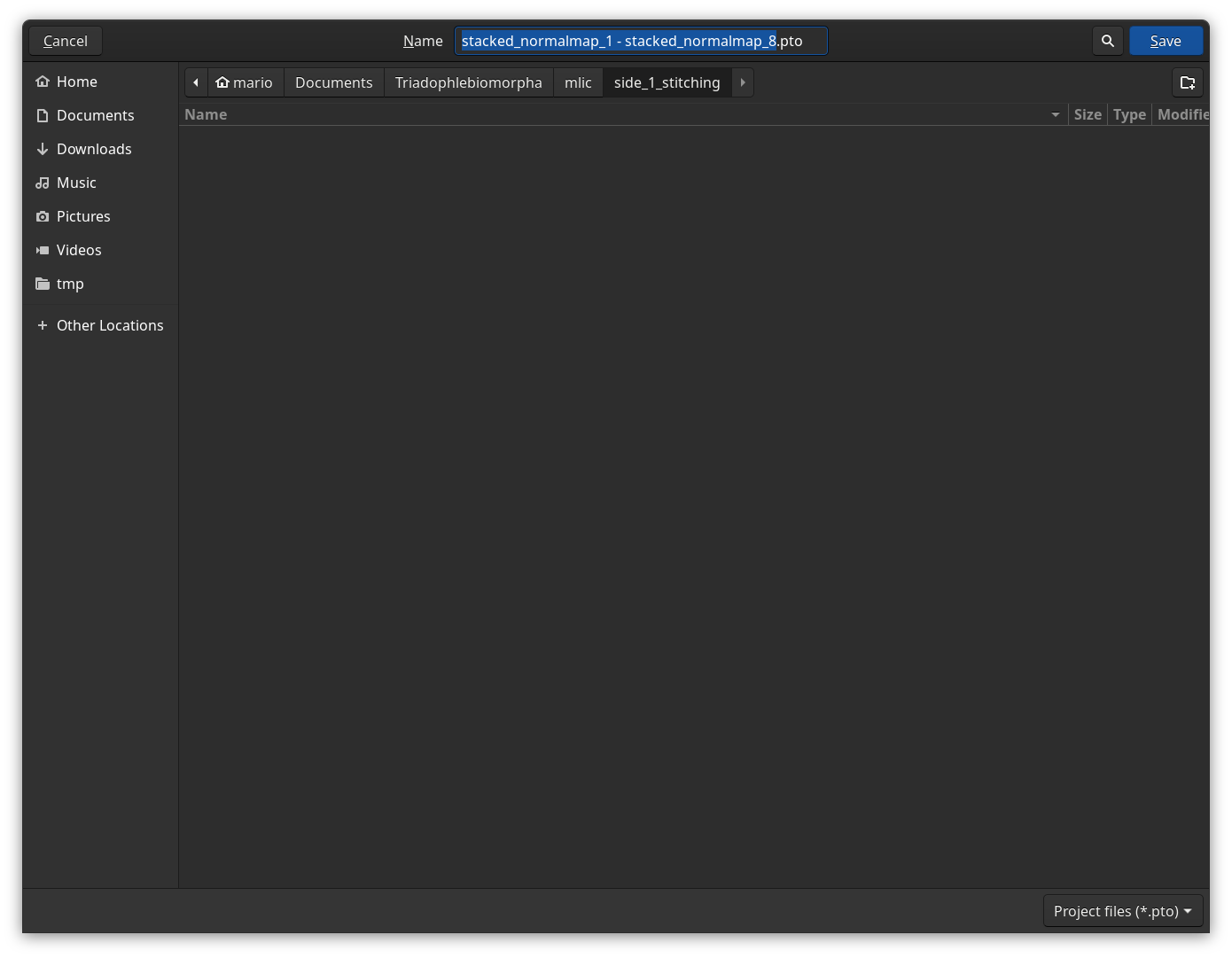
<p>1) All images should be of the same dimension. This sounds trivial but depending on the focus-merging software and settings, image dimensions can vary from image to image by a few pixels. If it is not possible to get the input images to be of the same size, you have to account for that later – depending on the images and the overlap it is possible that you will not get good results.</p>

<p><img src="images/stitching_hugin/macro_pano_hugin-02.png" alt="" /></p>

<p><img src="images/stitching_hugin/macro_pano_hugin-01.png" alt="" /></p>

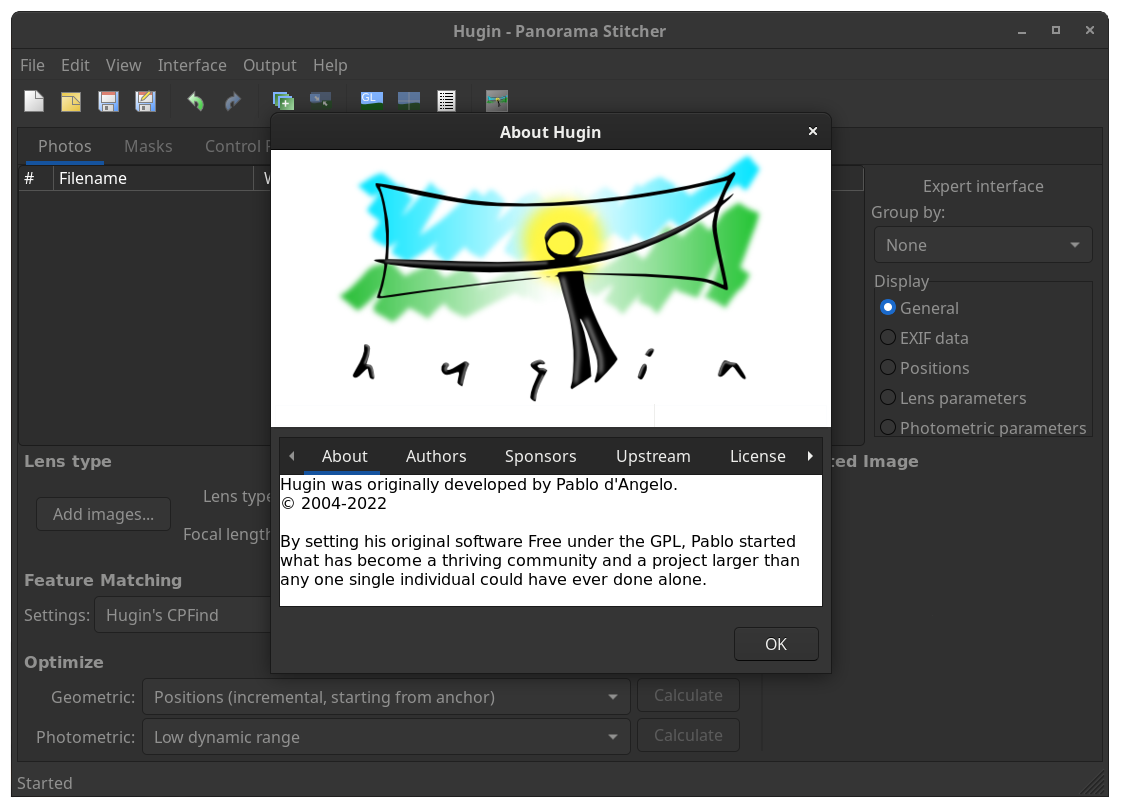
<p>2) Make sure you have at least the 2022 version of Hugin (available as a flatpak). Under <code class="language-plaintext highlighter-rouge">Interface</code> in the top menu select <code class="language-plaintext highlighter-rouge">Expert</code> (you <strong>will</strong> need the expert settings later on).
<img src="images/stitching_hugin/macro_pano_hugin-03.png" alt="" /></p>

<p>3) Navigate to the <code class="language-plaintext highlighter-rouge">Photos</code> tab (if you are not already there).</p>

<p>4) Import your images by clicking the <code class="language-plaintext highlighter-rouge">Add images...</code> button and selecting all images that should contribute to the panorama.
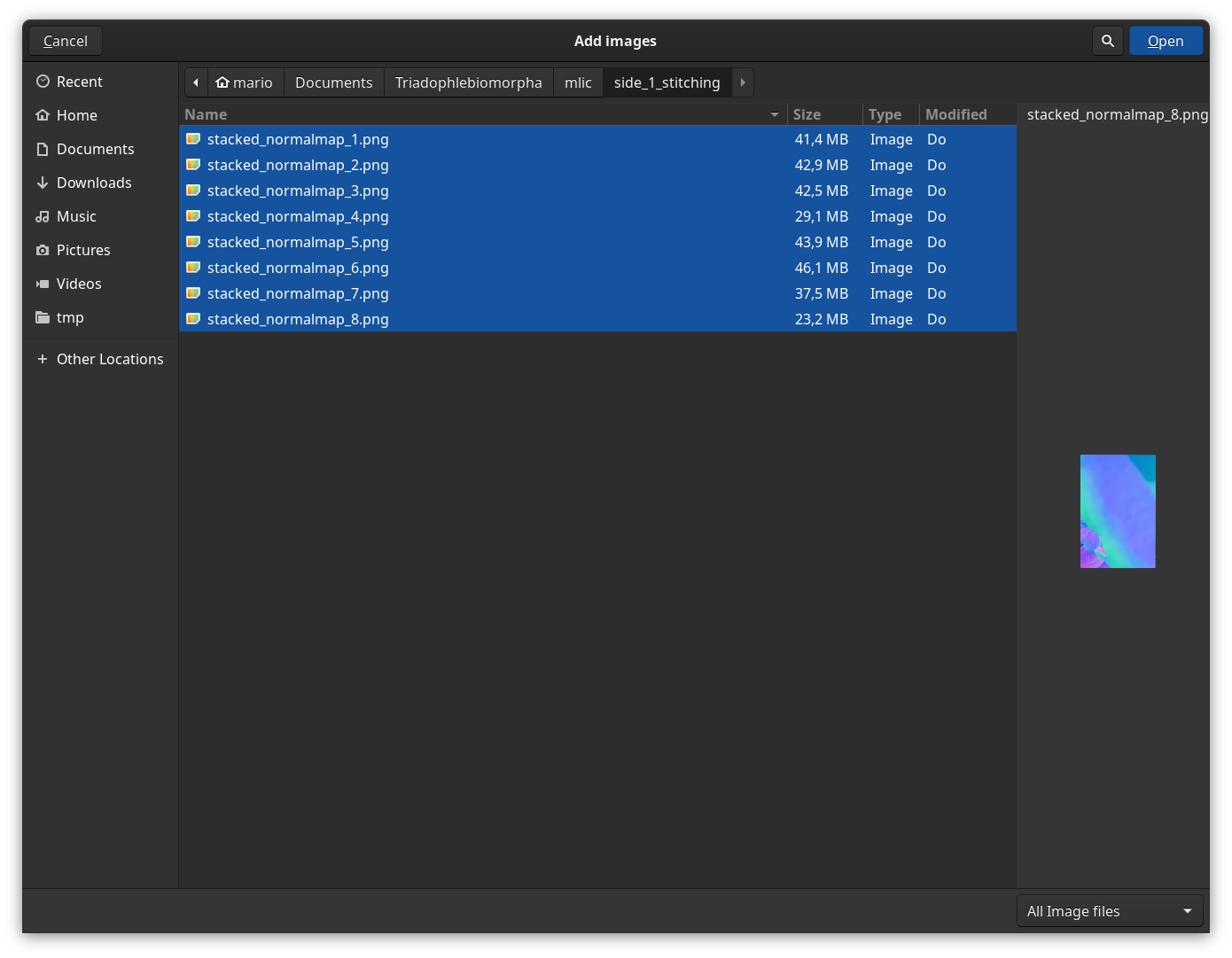
<img src="images/stitching_hugin/macro_pano_hugin-04.png" alt="" /></p>

<p>5) Enter your camera and lens data. For the camera data you have to enter the crop factor of the camera sensor (relative to a full frame sensor), so for example <code class="language-plaintext highlighter-rouge">1.5</code> for a Nikon DX (APS-C) sensor. Note that this will change the <code class="language-plaintext highlighter-rouge">HFOV</code> (Horizontal Field Of View) value.</p>

<p>If you could not determine the focal length, e.g. because you did not use a standard lens or lost the information which lens you used, click Cancel and it will fill in default values, which can be very detrimental for your stitching results if not recalculated later (see below).
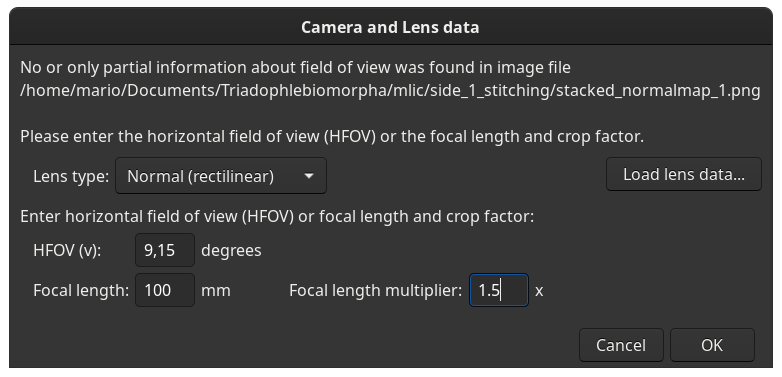
<img src="images/stitching_hugin/macro_pano_hugin-05.png" alt="" /></p>

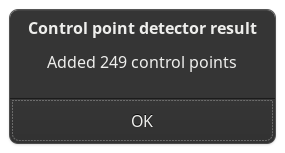
<p>6) Under <code class="language-plaintext highlighter-rouge">Feature matching</code> click <code class="language-plaintext highlighter-rouge">Create control points</code>. Use the default option ‘Hugin’s CPFind’. You can inspect and manually edit the control points under the <code class="language-plaintext highlighter-rouge">Control Points</code> tab (useful for blurry images or images with large out of focus areas).
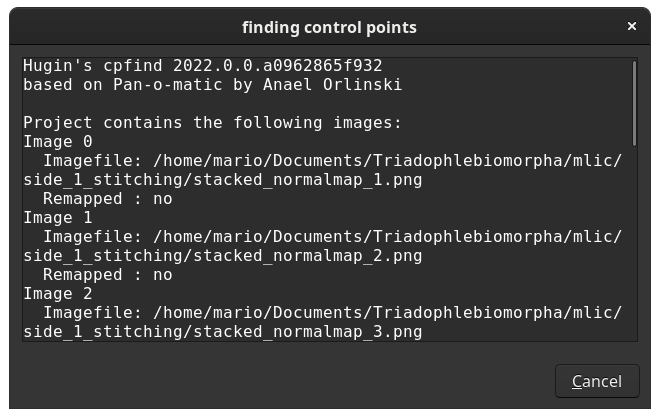
<img src="images/stitching_hugin/macro_pano_hugin-06.png" alt="" /></p>

<p>Check the number of control points and get a feeling for it.</p>

<p><img src="images/stitching_hugin/macro_pano_hugin-07.png" alt="" /></p>

<p>7) Under <code class="language-plaintext highlighter-rouge">Optimize</code> select <code class="language-plaintext highlighter-rouge">Custom parameters</code>. Note that a new tab <code class="language-plaintext highlighter-rouge">Optimzer</code> appears.
<img src="images/stitching_hugin/macro_pano_hugin-08.png" alt="" /></p>

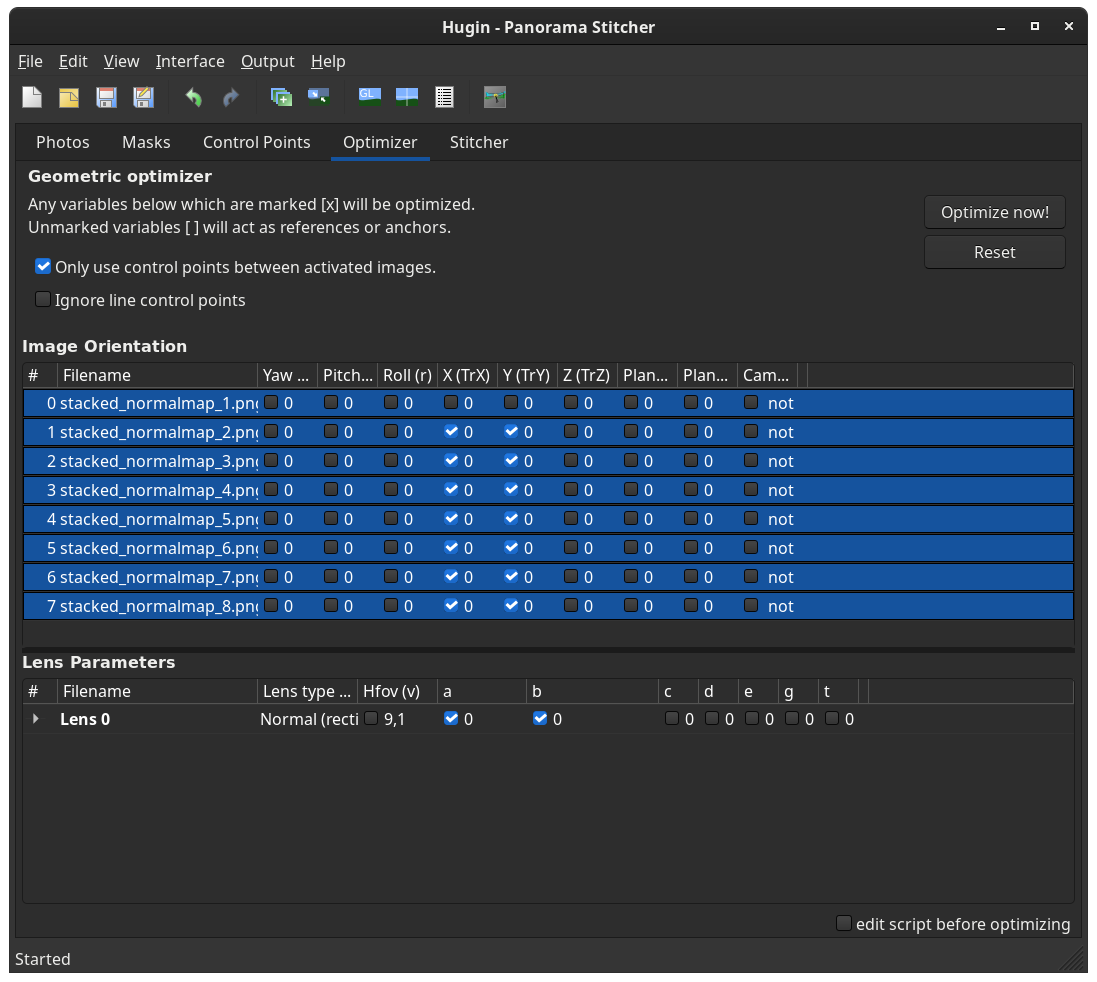
<p>8) Go to the the tab <code class="language-plaintext highlighter-rouge">Optimzer</code>.</p>

<p>Under <code class="language-plaintext highlighter-rouge">Image orientation</code>:</p>
<ul>
  <li>Leave one image totally unchecked (Anchor image from the <code class="language-plaintext highlighter-rouge">Photos</code> tab, its position does not need to be optimzed)</li>
  <li>For all other images select only <code class="language-plaintext highlighter-rouge">X(TrX)</code> and <code class="language-plaintext highlighter-rouge">Y(TrY)</code> to be optimized. This is unless you need to account for (accidental) tilting that might have occurred while capturing (e.g. handheld camera, movement of the specimen by hand leading to rotation)</li>
</ul>

<p>Under <code class="language-plaintext highlighter-rouge">Lens Parameters</code> check <code class="language-plaintext highlighter-rouge">a</code> and <code class="language-plaintext highlighter-rouge">b</code>. If you were not able to determine the focal length then you also need to check <code class="language-plaintext highlighter-rouge">Hfov (v)</code>.
<img src="images/stitching_hugin/macro_pano_hugin-09.png" alt="" /></p>

<p>9) Click <code class="language-plaintext highlighter-rouge">Optimize now!</code>. The checked box Only use control points between activated images refers to settings from a different menu (all images are activated by default).
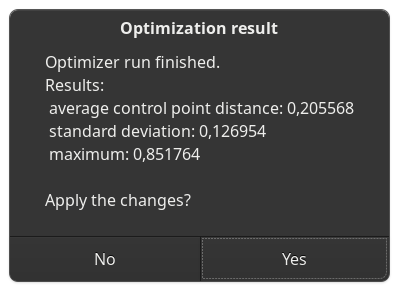
<img src="images/stitching_hugin/macro_pano_hugin-10.png" alt="" /></p>

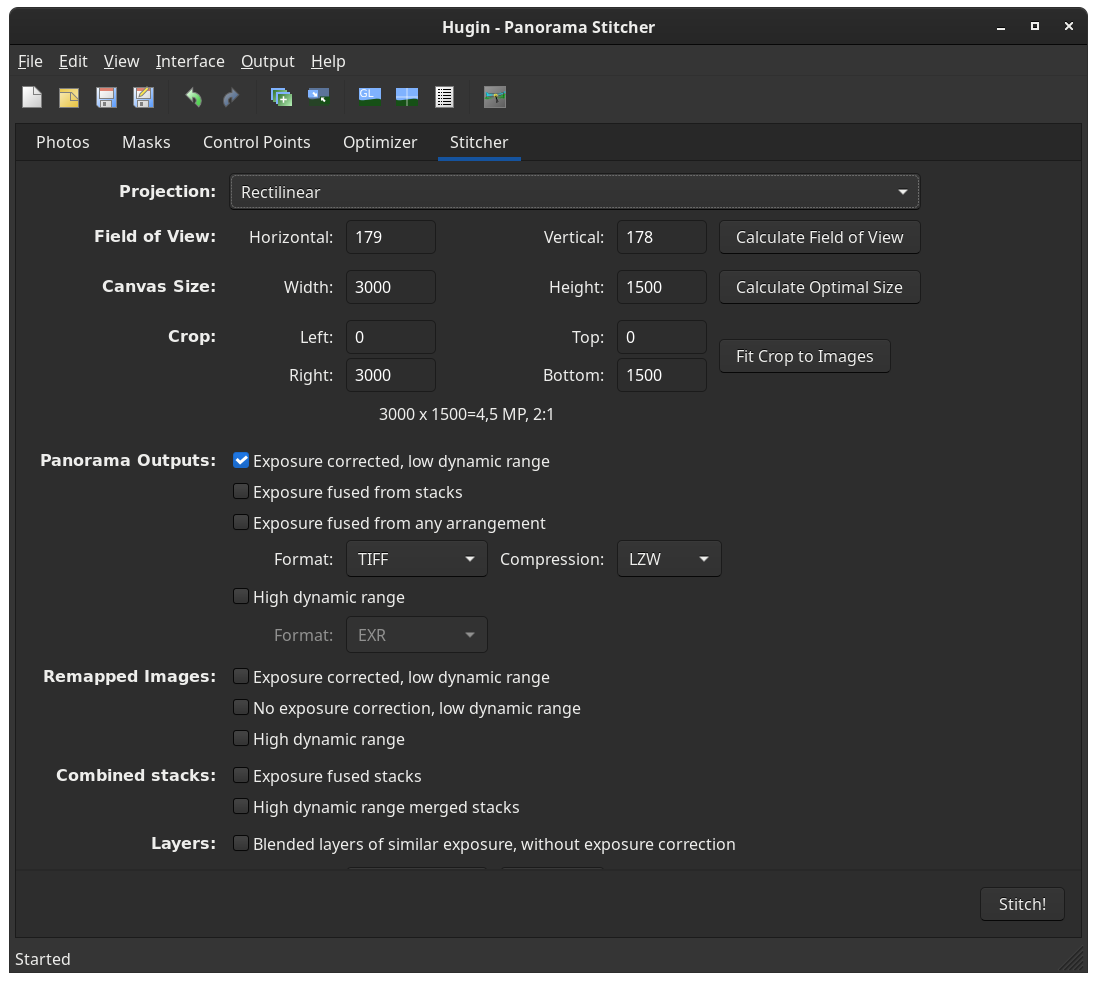
<p>10) Go to the <code class="language-plaintext highlighter-rouge">Stitcher</code> tab and select the <code class="language-plaintext highlighter-rouge">Projection</code> to <code class="language-plaintext highlighter-rouge">Rectilinear</code>.
<img src="images/stitching_hugin/macro_pano_hugin-11.png" alt="" /></p>

<p>11) You can inspect your unblended stitching results now by clicking the iconized button <code class="language-plaintext highlighter-rouge">Preview panorama</code> or <code class="language-plaintext highlighter-rouge">Preview panorama (OpenGL)</code>. This will open another window with the <code class="language-plaintext highlighter-rouge">Simple</code> interface. Use the sliders and the mouse wheel to zoom in and out.
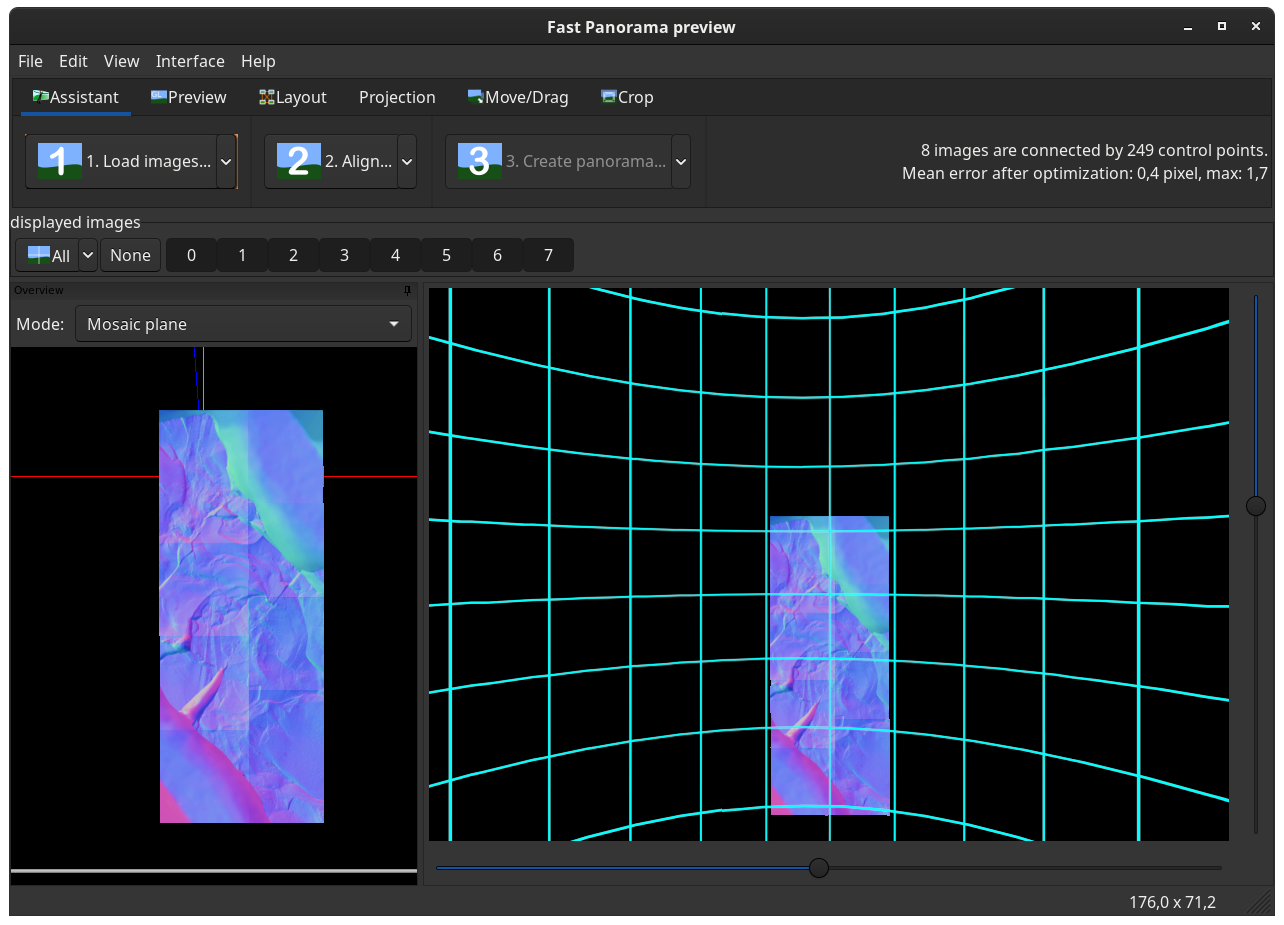
<img src="images/stitching_hugin/macro_pano_hugin-12.png" alt="" /></p>

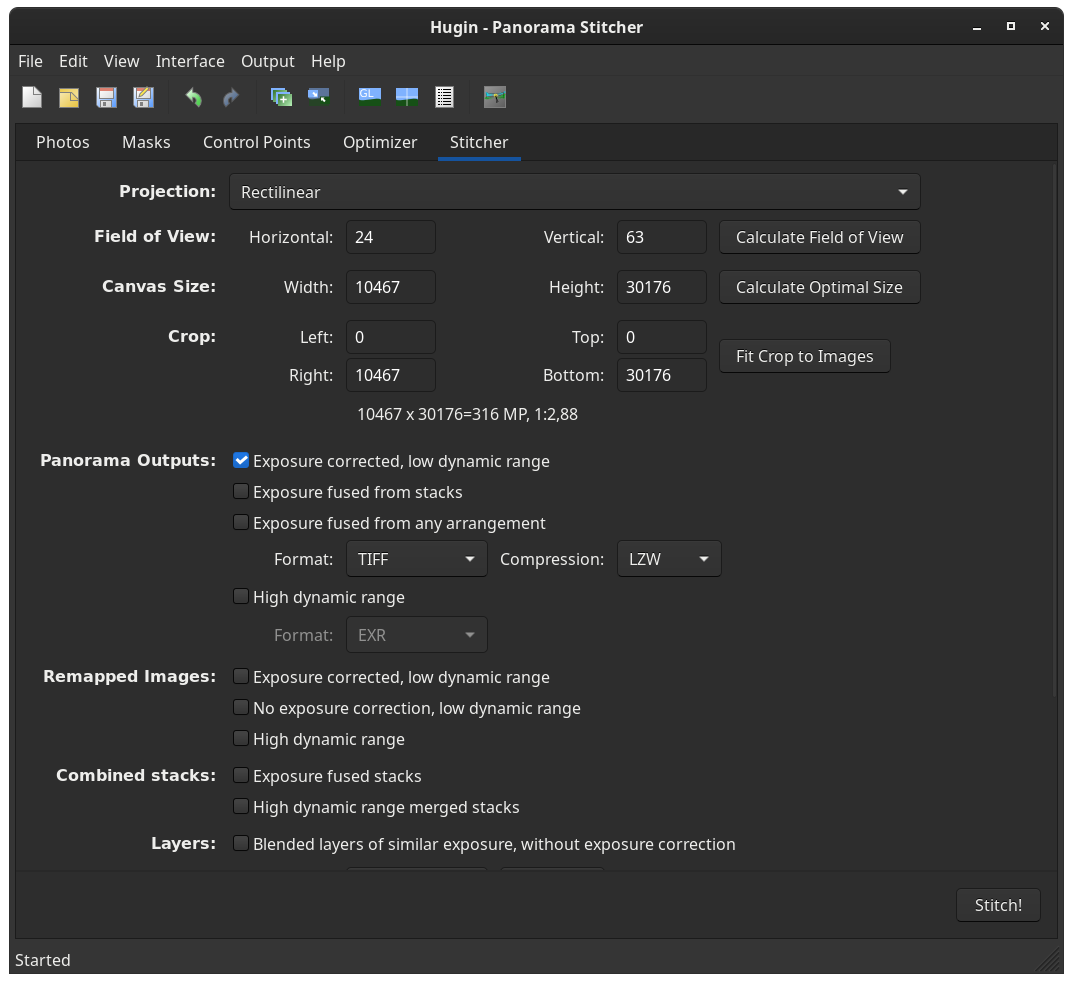
<p>12) Go back to the Stitcher tab and click the buttons <code class="language-plaintext highlighter-rouge">Calcuate Field of View</code> and <code class="language-plaintext highlighter-rouge">Calculate Optimal Size</code>. You may also click <code class="language-plaintext highlighter-rouge">Fit Crop to Images</code>. This will remove unoccupied image space; yet, it can also cut off areas of your panorama that stick out from a rectangluar arrangement. You can always crop the image later in a raster graphics editor like <a href="https://www.gimp.org/">GIMP</a>.</p>

<p>You can leave all remainder settings at their default values.</p>

<p>Click <code class="language-plaintext highlighter-rouge">Stitch!</code>
<img src="images/stitching_hugin/macro_pano_hugin-13.png" alt="" /></p>

<p>13) Before Hugin blends together your panorama, you <strong>need</strong> to save the stitching project, so that the command line programs that do the heavy lifting can read the information they require.
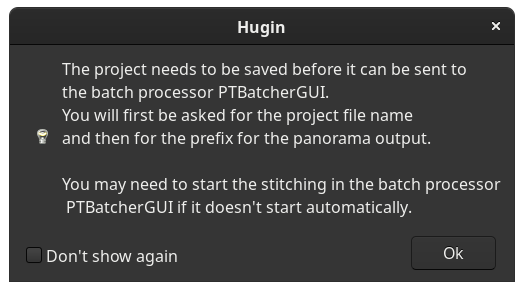
<img src="images/stitching_hugin/macro_pano_hugin-14.png" alt="" />
<img src="images/stitching_hugin/macro_pano_hugin-15.png" alt="" /></p>

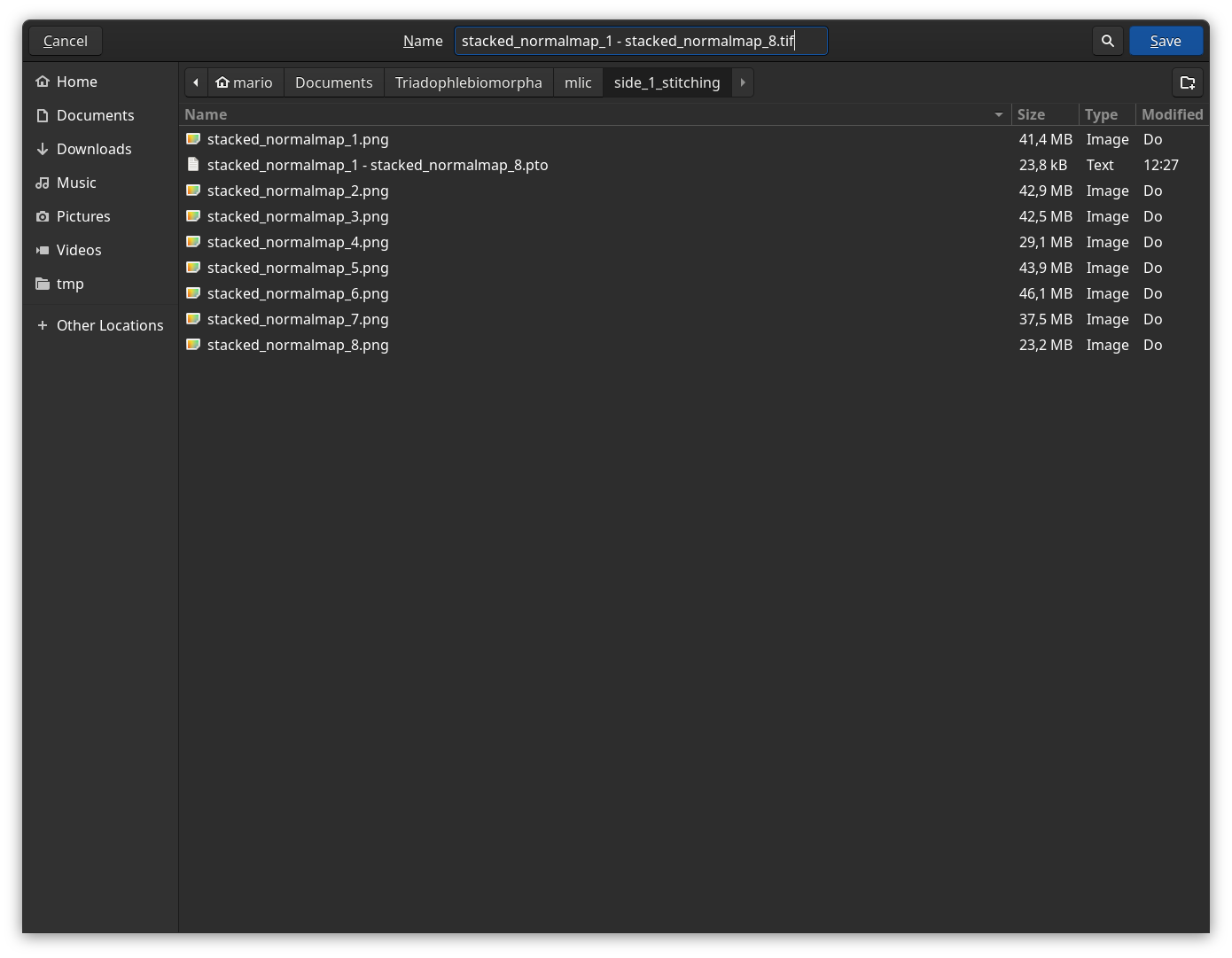
<p>14) You will also be asked to provide a file name. Make sure to also append the desired file extension (<code class="language-plaintext highlighter-rouge">.tif</code> for the default <code class="language-plaintext highlighter-rouge">Stitcher</code> settings)
<img src="images/stitching_hugin/macro_pano_hugin-16.png" alt="" /></p>

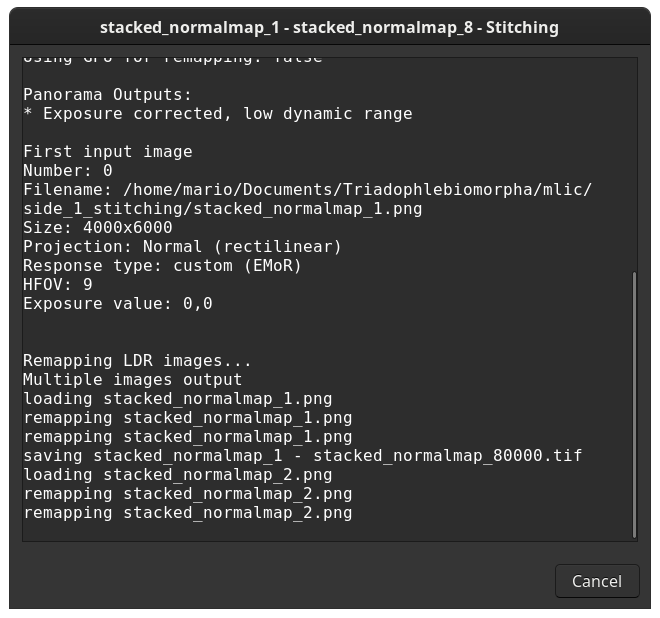
<p>15) Hugin will then try to run your project and constantly tell you what it is currrently doing. Hugin may also open another where your project will appear as one job in a batch processing queue. Ignore the batch processing window – <strong>do not close it!</strong>
<img src="images/stitching_hugin/macro_pano_hugin-17.png" alt="" /></p>

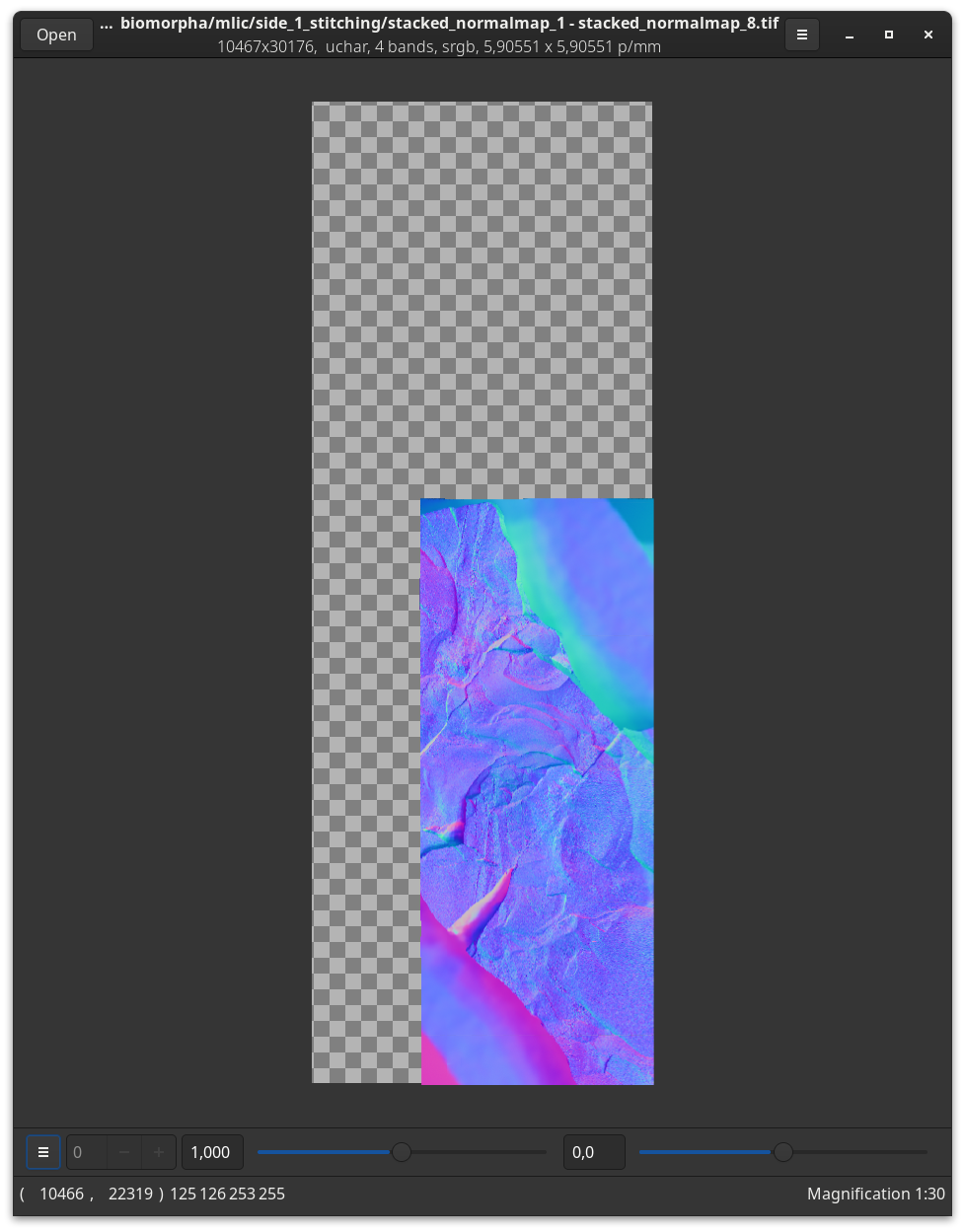
<p>16) Note that the resulting panoramic images, especially when not automatically cropped, can <strong>have very large pixel dimensions</strong>. Because of this, it may be best to either use a powerful raster graphics editor like GIMP to open it and to crop it to the desired dimensions or to use a image viewer that is designed for large images like <a href="https://github.com/jcupitt/vipsdisp">vipsdisp</a> to open it.
<img src="images/stitching_hugin/macro_pano_hugin-18.png" alt="" /></p>]]></content><author><name></name></author><category term="image-manipulation" /><category term="macro-photography" /><summary type="html"><![CDATA[Stitching accurate panormas from macro photography images]]></summary></entry><entry><title type="html">Simulating common colour vision deficiencies</title><link href="/colour-deficiency-simulation" rel="alternate" type="text/html" title="Simulating common colour vision deficiencies" /><published>2023-01-12T10:19:15+00:00</published><updated>2023-01-12T10:19:15+00:00</updated><id>/colour-deficiency-simulation</id><content type="html" xml:base="/colour-deficiency-simulation"><![CDATA[<h1 id="simulating-common-colour-vision-deficiencies">Simulating common colour vision deficiencies</h1>

<h2 id="why-should-you-care">Why should you care?</h2>
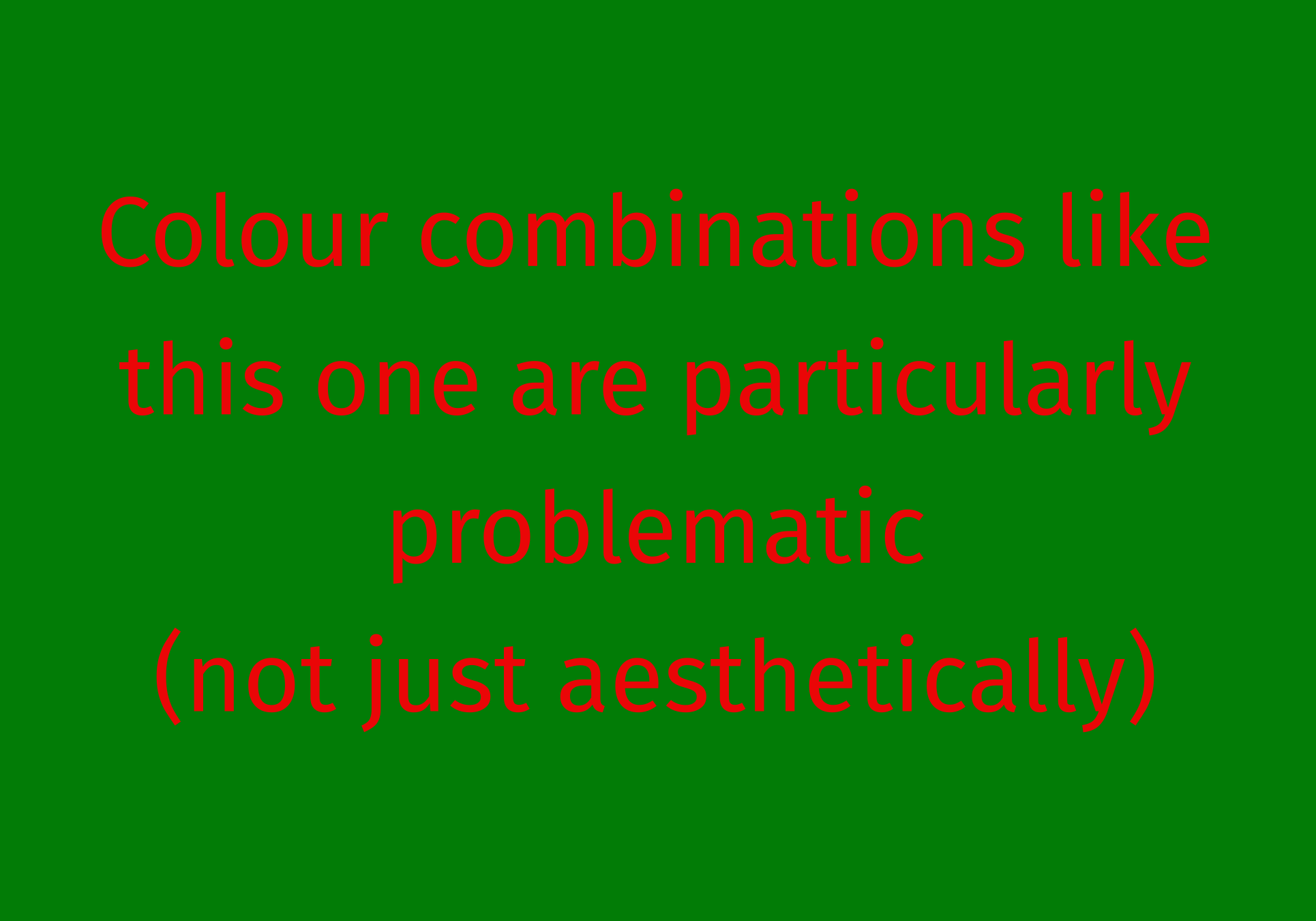
<p>While most people can differentiate colours well, there is a surprisingly large portion of the population that consists of people with impairments regarding the differentiation of colours <a href="https://en.wikipedia.org/wiki/Color_blindness">Wikipedia</a>. Often this is referred to as colour blindness; however, most people with these conditons are not achromatic and do see different colours. The most prevalent type of colour vision deficiency affects up to 6% of the male population (colour vision deficiencies are much less prevalent in females). Therefore, if your figures are being viewed by a few hundred people, the chances are high that there is a part of your audience that has trouble differentiating colours.</p>

<figure class="image">
    <img src="images/colour-deficiency-simulation/colourdef_red_green.png" alt="This is how you see the image (most people see a strong colour contrast)" />
    <figcaption>This is how you see the image (most people see a strong colour contrast)</figcaption>
  </figure>

<h2 id="what-can-we-do-about-it">What can we do about it?</h2>
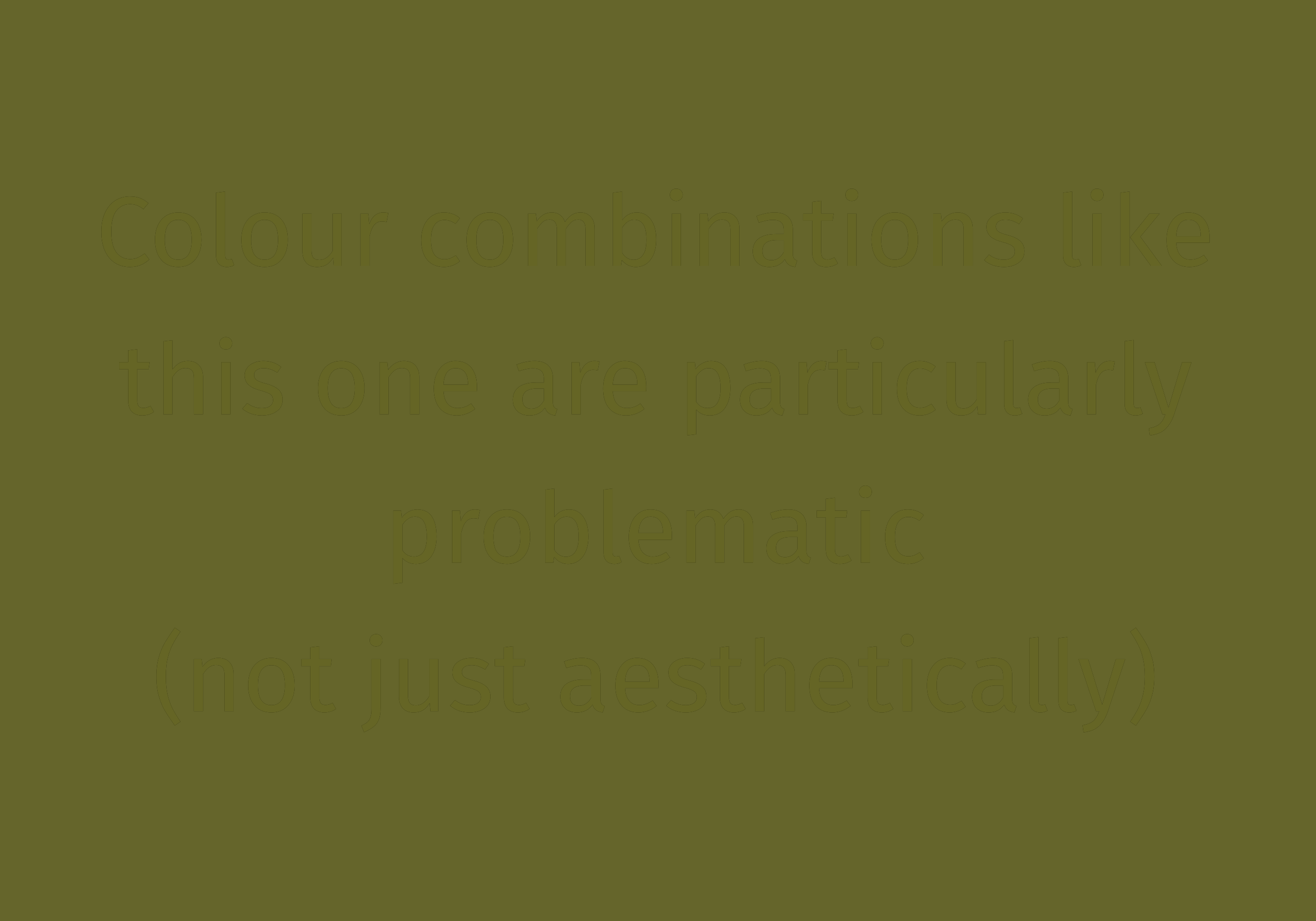
<p>Not using colours at all would be a waste of opportunities. One would throw a powerful toolset over board, that could have been used to communicate ones findings in a more intuitive way than in grayscale figures. Thankfully, colour vision deficiencies can be simulated in order to understand what colour combinations are most problematic and which colour combinations are fine fro most people.</p>

<figure class="image">
    <img src="images/colour-deficiency-simulation/colourdef_red_green_deut.png" alt="This is approximately how a person with deuteranopia sees the image, the fine hairlines are an artifact of exporting the image from a vector graphics program" />
    <figcaption>This is approximately how a person with deuteranopia sees the image, the fine hairlines are an artifact of exporting the image from a vector graphics program</figcaption>
  </figure>

<h2 id="technical-solutions">Technical solutions</h2>
<p>There is a variety of programs available to simulate the most common forms of colour vision impairment. Here are some of the solutions that I tried and and which worked out for me. Note that this selection is biased towards software that is free and available to use in Linux.</p>

<ul>
  <li>
    <p><a href="https://colororacle.org/">Color Oracle</a>: This is a Java based application available for Linux, MacOS and Windows. Note that for this you need a suitable Java runtime environment and a system tray. The software creates a still view of the entire screen that disappears with the next mouse click or keyboard button push.</p>
  </li>
  <li>
    <p><a href="https://github.com/joergdietrich/daltonize">Daltonize python library</a>: This is a python library that allows to convert image files. It can be used to integrate colour deficiency checking into your workflow by writing a shell script and executing it with a keyboard shortcut. No desktop environment is necessary for this. Here is how I use it on my laptop that currently runs the Qtile window manager.</p>
  </li>
</ul>

<div class="language-bash highlighter-rouge"><div class="highlight"><pre class="highlight"><code><span class="c">#!/bin/bash</span>
<span class="c"># This is based on the free and open programs scrot (screencapture), daltonize (deuteranopia filter) and feh (imageviewer)</span>
<span class="c"># https://github.com/joergdietrich/daltonize</span>
<span class="c"># Daltonize must not be used commercialy!</span>

scrot ~/Pictures/deuter.png <span class="nt">-o</span> <span class="nt">-q</span> 100
daltonize ~/Pictures/deuter.png ~/Pictures/deuter.png <span class="nt">-s</span> 
feh ~/Pictures/deuter.png <span class="nt">-F</span>
</code></pre></div></div>

<ul>
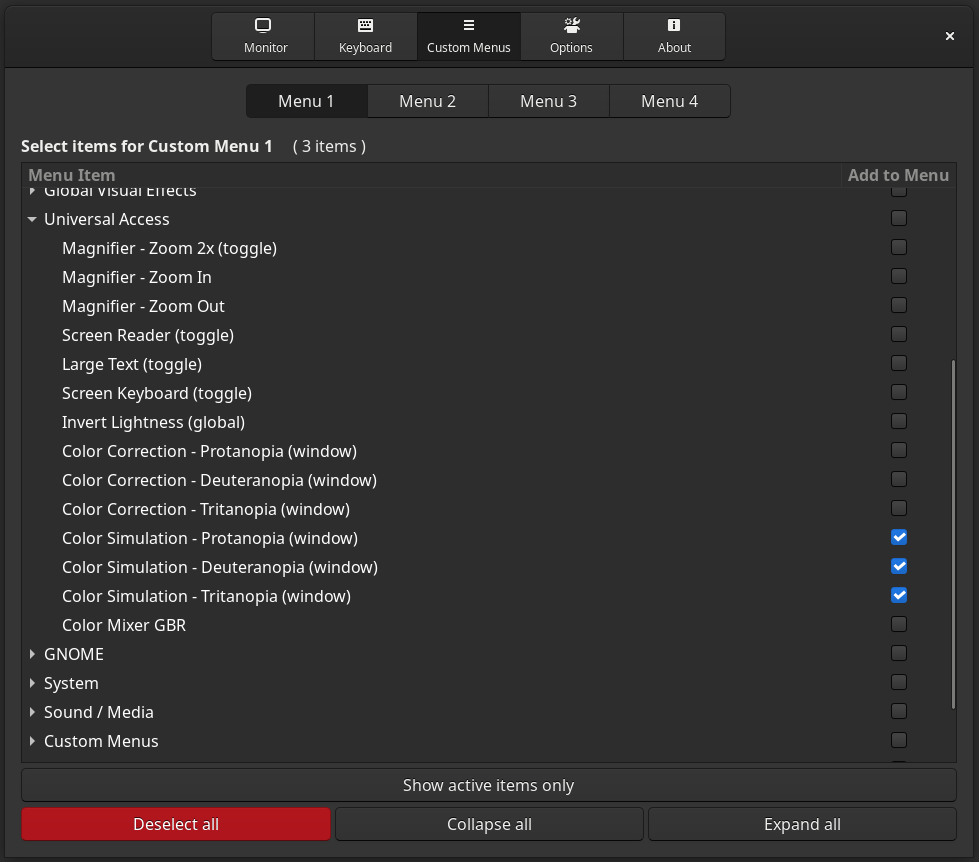
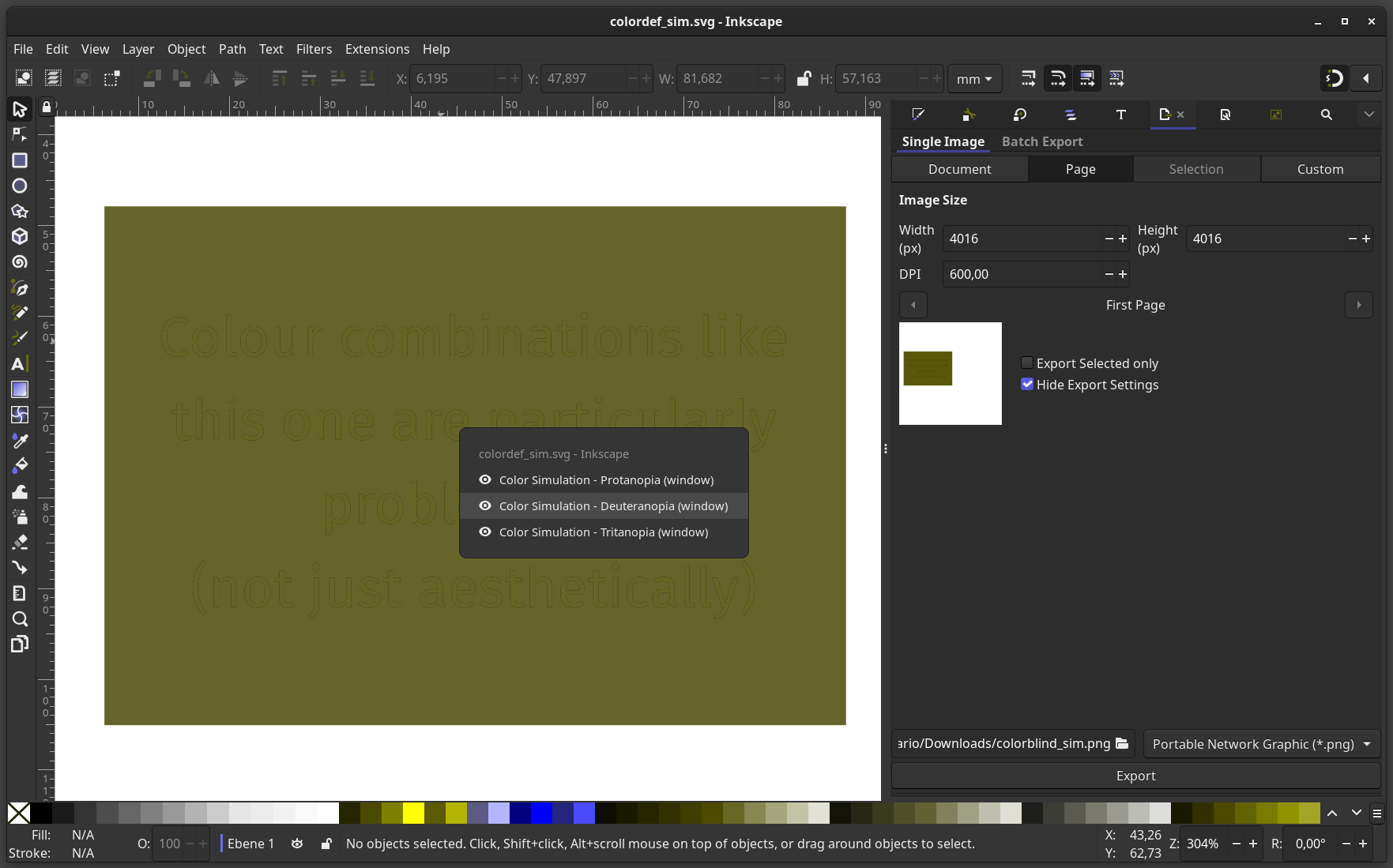
  <li><a href="https://github.com/G-dH/custom-hot-corners-extended">Custom Hot Corners - Extended (Gnome extension)</a>: This is an extension for the Gnome desktop environment that allows you to render a window with converted colours, so that you can actually work as if you were impaired. This allows you to tweak the colours without having to go back and forth as often as you would have to with the other two solutions presented above. If Gnome is your desktop environmaent of choice, this is probably the best solution out there. The extension serves as a frontend for the Gnome Universal Access tools and different functions can be grouped into custom menus, which then can be launched with keyboard shortcuts.</li>
</ul>

<figure class="image">
    <img src="images/colour-deficiency-simulation/gnome_ext_menu.png" alt="This menu is accessible through the extensions app or the extensions manager app" />
    <figcaption>This menu is accessible through the extensions app or the extensions manager app</figcaption>
  </figure>

<figure class="image">
    <img src="images/colour-deficiency-simulation/gnome_inkscape_deut.png" alt="The custom menu after being launched with a keyboard shortcut" />
    <figcaption>The custom menu after being launched with a keyboard shortcut</figcaption>
  </figure>]]></content><author><name></name></author><category term="image-manipulation" /><category term="bash" /><summary type="html"><![CDATA[Simulating common colour vision deficiencies]]></summary></entry><entry><title type="html">Merging focus stacks on the command line</title><link href="/merging-focus-stacks" rel="alternate" type="text/html" title="Merging focus stacks on the command line" /><published>2020-12-31T10:19:15+00:00</published><updated>2020-12-31T10:19:15+00:00</updated><id>/merging%20focus%20stacks</id><content type="html" xml:base="/merging-focus-stacks"><![CDATA[<h1 id="an-introduction-to-merging-focus-stacks-using-command-line-tools">An Introduction to merging focus stacks using command line tools</h1>

<h2 id="why-the-command-line">Why the command line?</h2>
<p>There are many programs available to perform the task of merging multiple images into a single image with everything in focus. Some of the most widely used programs are proprietary (e.g. Helicon Focus or Zerene Stacker). There are also many programs that are free/free and open that can do the same task in a similar quality as the proprietary programs. Probably the most widely used free and open focus merging program is <a href="https://www.chip.de/downloads/CombineZP_27754625.html">CombineZP</a> (formerly CombineZ5 and CombineZM), which was the program that I used most often in the past years, because it is free and open and it produces high quality results. But what if you have to merge a lot of stacks and you don’t want to spend an afternoon clicking through menus and waiting for the program to finish each job? A good solution to this is to use focus merging programs in a batch mode. CombineZP for example comes with a companion program (CZBatch), that does exactly that. But CombineZP has its glitches and a lot of windows tend to pop up even if you use it in batch mode (practically making your computer unusable until the program finishes). Still, CombineZP is easy to use, consistently produces high quality results and, though designed for Windows, it can run on UNIX systems like GNU/Linux with the help of <a href="https://www.winehq.org/">WINE</a> and derivative programs like <a href="https://winebottler.kronenberg.org/">Winebotteler</a>. This way for many people CombineZP will continue to be the best solution in the open source realm.</p>

<p>But what if you want to speed up your workflow by using a powerful server instead of your laptop or perform actions that are not included in your focus merging program without exporting and importing files by hand? What if you want to focus merge images automatically as soon as your digital microscope finished taking the pictures? Or what if you simply want your focus merging to be done quietly in a terminal window while you are doing something else? If you are able to move your focus merging workflow to the command line all of this (and a lot more) is possible. Also, if there are new methods for focus merging, in most cases they will be available as command line programs before (if ever) someone writes a graphical user interface (GUI) for them.</p>

<h2 id="what-programs-to-use">What programs to use?</h2>
<p>Even though CombineZP seems to have command line functionality, I avoided using it so far because it is a Windows program and the errors which I can run into might be really hard to fix on on my Linux systems.</p>

<h3 id="hugin-and-enfuse">Hugin and Enfuse</h3>
<p>One way is to use <code class="language-plaintext highlighter-rouge">enfuse</code> from <a href="http://enblend.sourceforge.net/">Enfuse/Enblend</a>. However, <code class="language-plaintext highlighter-rouge">enfuse</code> can only perform the focus merging process but not the image alignment. For the image alignment another program is needed. For this we can use <code class="language-plaintext highlighter-rouge">align_image_stack</code> from the software suite <a href="http://hugin.sourceforge.net/">Hugin</a>. Both programs are easily available on most Linux distributions via the inbuilt package managers and can also be installed on other UNIX systems such as MacOS (not tested personally).</p>

<div class="language-bash highlighter-rouge"><div class="highlight"><pre class="highlight"><code><span class="c"># for Debian/Ubuntu (based) distributions:</span>
<span class="nb">sudo </span>apt <span class="nb">install </span>hugin enfuse 
</code></pre></div></div>
<p>Instructions on how to install these programs on MacOS are available on the respective websites linked above.</p>

<h4 id="the-alignment">The alignment</h4>
<p>Hugin has a graphical user interface (GUI), but it can as well be used from the command line. For the alignment we only need the function <code class="language-plaintext highlighter-rouge">align_image_stack</code>. The program <code class="language-plaintext highlighter-rouge">align_image_stack</code> from Hugin takes the names of the images which have to be aligned as the first argument (arguments come after the name of the program and are separated by spaces). To export the aligned images as image files we need to put the option <code class="language-plaintext highlighter-rouge">-a</code> followed optionally by the prefix (the name that the aligned images should have). The argument <code class="language-plaintext highlighter-rouge">-m</code> tells the program to resize the images. This is needed when the magnification is slightly different between the images (happens in many optical setups). The argument <code class="language-plaintext highlighter-rouge">-i</code> tells the program to optimize the image center shift. <code class="language-plaintext highlighter-rouge">--use-given-order</code> tells the program to not use the darkest image as the first in the stack. This seems to be a weird default but hugin is often used to do align for HDR (high dynamic range) images, where this makes sense. With the argument <code class="language-plaintext highlighter-rouge">-c</code> you can specify the number of reference points used during the alignment. The default value was too small for my large DSLR camera images so I increased the number to 20.</p>

<div class="language-bash highlighter-rouge"><div class="highlight"><pre class="highlight"><code>align_image_stack image_1 image_2 image_3 <span class="se">\</span>
                        <span class="nt">-a</span> aligned_ <span class="nt">-m</span> <span class="nt">-i</span> <span class="se">\</span>
                        <span class="nt">--use-given-order</span> <span class="se">\</span>
                        <span class="nt">-c</span> 20
</code></pre></div></div>

<p>Writing or pasting in names of files is of course very inefficient. The below command takes all images beginning with the letters <code class="language-plaintext highlighter-rouge">IMG</code> (case sensitive!) which are in the current directory (folder) as input of the program. The backslash sign only acts as a line break and allows to write oneliners on multiple lines to increase the readability.</p>

<div class="language-bash highlighter-rouge"><div class="highlight"><pre class="highlight"><code>align_image_stack IMG<span class="k">*</span> <span class="se">\</span>
                <span class="nt">-a</span> aligned_ <span class="se">\</span>
                <span class="nt">-m</span> <span class="nt">-i</span> <span class="se">\</span>
                <span class="nt">--use-given-order</span> <span class="se">\</span>
                <span class="nt">-c</span> 20
</code></pre></div></div>

<p>Depending on your hardware it might make sense to use the GPU with the argument <code class="language-plaintext highlighter-rouge">-gpu</code> to speed up the alignment process (haven’t tried it yet).</p>

<h4 id="the-focus-merging">The focus merging</h4>
<p>The program <code class="language-plaintext highlighter-rouge">enfuse</code>  can not only merge focus stacks but also stacks of images with different illumination (HDR). The default values of the program are not suitable for focus merging. Enfuse takes the names of the images which have to be aligned as the first argument. The options <code class="language-plaintext highlighter-rouge">--hard-mask</code> <code class="language-plaintext highlighter-rouge">--contrast-weight</code> <code class="language-plaintext highlighter-rouge">--exopsure-weight</code> and <code class="language-plaintext highlighter-rouge">--saturation-weight</code> have to be set as below for enfuse to be useful for focus merging.</p>

<div class="language-bash highlighter-rouge"><div class="highlight"><pre class="highlight"><code>enfuse aligned_<span class="k">*</span> <span class="nt">--hard-mask</span> <span class="se">\</span>
                <span class="nt">--contrast-weight</span> 1 <span class="se">\</span>
                <span class="nt">--exposure-weight</span> 0 <span class="se">\</span>
                <span class="nt">--saturation-weight</span> 0 <span class="se">\</span>
                <span class="nt">--contrast-window</span> 7 <span class="se">\</span>
                <span class="nt">--contrast-edge-scale</span><span class="o">=</span>0.3 <span class="se">\</span>
                <span class="nt">--contrast-min-curvature</span><span class="o">=</span><span class="nt">-0</span>.5% <span class="se">\</span>
                <span class="nt">-o</span> merfoc_enf.tif
</code></pre></div></div>
<p>The above command takes all images beginning with <code class="language-plaintext highlighter-rouge">aligned_</code> as input and outputs (argument <code class="language-plaintext highlighter-rouge">-o</code>) a single image with the name <code class="language-plaintext highlighter-rouge">merfoc.tif</code>
The other arguments are optional and the values given here are based on my judgement of the results from my images. Different images may need different settings. The meaning of the settings can be researched in the <a href="http://enblend.sourceforge.net/enfuse.doc/enfuse_4.2.pdf">documentation of enfuse</a>, which is very vast and detailed.</p>

<h3 id="focus-stack"><code class="language-plaintext highlighter-rouge">focus-stack</code></h3>
<p>The program <a href="https://github.com/PetteriAimonen/focus-stack">focus-stack</a> by Petteri Aimonen can do both, the alignment and the focus merging. Also, even with the default settings it produces very good results. And it is <strong>fast</strong>. However, the installation is a bit more complex because it not available through package managers and has to be built from the source code. It depends on <a href="https://opencv.org/">OpenCV</a>, which has to be installed beforehand. It uses an algorithm developed by <a href="http://bigwww.epfl.ch/publications/forster0404.html">Forster et al. 2004</a>, which is also built into an <a href="http://bigwww.epfl.ch/demo/edf/">ImageJ plugin</a>.</p>

<div class="language-bash highlighter-rouge"><div class="highlight"><pre class="highlight"><code>focus-stack image_1 image_2 image_3 <span class="nt">--output</span><span class="o">=</span>/<span class="o">}</span>_merfoc_fs.tif
</code></pre></div></div>

<h2 id="efficiently-using-the-command-line-programs">Efficiently using the command line programs</h2>
<p>To not repeat these commands for each stack the commands can be wrapped into a shell script, which can act like a program on the command line. For this scripts to work properly, the image files of each stack must be in their own folders (and checked and for eventual 90 degree rotations!). The folders should be inside an ideally empty folder (text files etc. are unproblematic but images could get overwritten accidentally). This way, preparing the files is the same as for CZBatch. All of the scripts have in common that they search for folders and sequentially go into them and perform the alignment followed by the focus merging. The original images remain as they are before running the scripts and the merged images are placed in the parent directory (where the stack-folders are located). The name of the output image is defined by the names of the stack folders and the suffix is specified in the script.</p>

<h3 id="focus-stack-inside-a-script-merfoc_fssh"><code class="language-plaintext highlighter-rouge">focus-stack</code> inside a script (<code class="language-plaintext highlighter-rouge">merfoc_fs.sh</code>)</h3>

<div class="language-bash highlighter-rouge"><div class="highlight"><pre class="highlight"><code><span class="c">#!/bin/bash</span>
<span class="c"># This line needs to be in all bash shell scripts to tell the computer what to do with it (use bash to execute it)</span>

<span class="c"># use a for loop to repeat the process for all folders in that directory</span>
<span class="k">for </span>d <span class="k">in</span> ./<span class="k">*</span>/
<span class="k">do</span>
        <span class="c"># go into each folder</span>
        <span class="nb">cd</span> <span class="s2">"</span><span class="nv">$d</span><span class="s2">"</span>

        <span class="c"># find image files and store them inside a variable</span>
        <span class="nv">images</span><span class="o">=</span><span class="si">$(</span>find <span class="k">*</span>.[Jj][Pp][Gg] <span class="k">*</span>.[Jj][Pp][Ee][Gg] <span class="k">*</span>.[Pp][Nn][Gg] <span class="k">*</span>.[Tt][Ii][Ff] <span class="k">*</span>.[Tt][Ii][Ff][Ff]<span class="si">)</span>

        <span class="c"># use a command line program that does the alignment and the focus merging in one go</span>
        <span class="c"># the program takes the image file variable as the input</span>
        focus-stack <span class="nv">$images</span> <span class="nt">--output</span><span class="o">=</span><span class="k">${</span><span class="nv">PWD</span><span class="p">##*/</span><span class="k">}</span>_merfoc_fs.tif
        <span class="c"># the output image has the name of the folder as a prefix</span>

        <span class="c"># to store the resulting in focus images of all focus stacks in one place they are moved up one directory</span>
        <span class="nb">mv</span> <span class="k">*</span>_merfoc_fs.tif ..

        <span class="c"># go out of each folder</span>
        <span class="nb">cd</span> ..
<span class="k">done</span>
</code></pre></div></div>

<h3 id="hugin-and-enfuse-inside-a-script-merfoc_enfsh">Hugin and Enfuse inside a script (<code class="language-plaintext highlighter-rouge">merfoc_enf.sh</code>)</h3>

<div class="language-bash highlighter-rouge"><div class="highlight"><pre class="highlight"><code><span class="c">#!/bin/bash</span>

<span class="c"># use a for loop to repeat the process for all folders in that directory</span>
<span class="k">for </span>d <span class="k">in</span> ./<span class="k">*</span>/
<span class="k">do</span>
        <span class="c"># go into each folder</span>
        <span class="nb">cd</span> <span class="s2">"</span><span class="nv">$d</span><span class="s2">"</span>

        <span class="c"># find image files and store them inside a variable</span>
        <span class="nv">images</span><span class="o">=</span><span class="si">$(</span>find <span class="k">*</span>.[Jj][Pp][Gg] <span class="k">*</span>.[Jj][Pp][Ee][Gg] <span class="k">*</span>.[Pp][Nn][Gg] <span class="k">*</span>.[Tt][Ii][Ff] <span class="k">*</span>.[Tt][Ii][Ff][Ff]<span class="si">)</span>

        <span class="c"># use a command line program that does the alignment</span>
        <span class="c"># the program takes the image file variable as the input</span>
        <span class="c"># the output images should be named in a way that they are easily searchable</span>
        align_image_stack <span class="nv">$images</span> <span class="nt">-a</span> aligned_ <span class="nt">-m</span> <span class="nt">-i</span> <span class="nt">--use-given-order</span> <span class="nt">-c</span> 20

        <span class="c"># use a command line program that does the focus merging</span>
        <span class="c"># using the asterisk the program searches for the aligned images as input images</span>
        enfuse aligned_<span class="k">*</span> <span class="nt">--hard-mask</span> <span class="se">\</span>
                <span class="nt">--contrast-weight</span> 1 <span class="se">\</span>
                <span class="nt">--exposure-weight</span> 0 <span class="se">\</span>
                <span class="nt">--saturation-weight</span> 0 <span class="se">\</span>
                <span class="nt">--contrast-window</span> 7 <span class="se">\</span>
                <span class="nt">--contrast-edge-scale</span><span class="o">=</span>0.3 <span class="se">\</span>
                <span class="nt">--contrast-min-curvature</span><span class="o">=</span><span class="nt">-0</span>.5% <span class="se">\</span>
                <span class="nt">-o</span> <span class="k">${</span><span class="nv">PWD</span><span class="p">##*/</span><span class="k">}</span>_merfoc_enf.tif

        <span class="c"># after the focus merging the aligned images can be deleted</span>
        <span class="nb">rm </span>aligned<span class="k">*</span>

        <span class="c"># to store the resulting in focus images of all focus stacks in one place they are moved up one directory</span>
        <span class="nb">mv</span> <span class="k">*</span>_merfoc_enf.tif ..

        <span class="c"># go out of each folder</span>
        <span class="nb">cd</span> ..
<span class="k">done</span>
</code></pre></div></div>

<p>The script explained here can also be found as downloadable files in this repository. To start the script you have to give the file the permission to be executed as a program (right click on the script in your file manager and change the permissions or do so on the command line <code class="language-plaintext highlighter-rouge">chmod +x merfoc.sh</code>). You also need to know where the script is or link it to a place where your operating system searches for executables. Go into the directory where your folders with the stacks are and type on the commandline:</p>

<div class="language-bash highlighter-rouge"><div class="highlight"><pre class="highlight"><code>/path/to/merfoc.sh
</code></pre></div></div>

<h2 id="practical-example-reducing-artefacts-around-fluorescent-fibers-when-photographing-with-uv-light-merfoc_fluosh">Practical example: Reducing artefacts around fluorescent fibers when photographing with UV light (<code class="language-plaintext highlighter-rouge">merfoc_fluo.sh</code>)</h2>
<p>When merging focus stacks of images from UV light photography there are often artefacts around dust fibers. Some dust fibers strongly glow in blue colour when exposed to UV light. When a focus stack is merged this can result in artefects which are much larger than the fiber itself. By removing the blue colour channel before the focus merging, these artefacts can be minimized. The <code class="language-plaintext highlighter-rouge">convert</code> function of the software suite <a href="https://imagemagick.org/index.php">Image Magick</a> can do that when given the specific arguments.</p>

<div class="language-bash highlighter-rouge"><div class="highlight"><pre class="highlight"><code>convert image_1 <span class="nt">-colorspace</span> RGB <span class="se">\</span>
                       <span class="nt">-channel</span> B <span class="se">\</span>
                       <span class="nt">-evaluate</span> <span class="nb">set </span>0 +channel <span class="se">\</span>
                       <span class="nt">-colorspace</span> Gray <span class="se">\</span>
                       image_1_redgreen.tif 
</code></pre></div></div>

<p>Image Magick is in general a great tool to convert and manipulate images fast and on the command line, that everyone should have on their system. This additional step can of course also be put into a shell script to be conveniently usable when handling a large number of stacks.</p>

<div class="language-bash highlighter-rouge"><div class="highlight"><pre class="highlight"><code><span class="c">#!/bin/bash</span>

<span class="c"># use a for loop to repeat the process for all folders in that directory</span>
<span class="k">for </span>d <span class="k">in</span> ./<span class="k">*</span>/
<span class="k">do</span>
        <span class="c"># go into each folder</span>
        <span class="nb">cd</span> <span class="s2">"</span><span class="nv">$d</span><span class="s2">"</span>


        <span class="c"># repeat the image manipulation (removing blue channel and desaturation) for all image files in the folder</span>
        <span class="c"># give the output images an easily findable name</span>
        <span class="nb">shopt</span> <span class="nt">-s</span> nullglob
        <span class="k">for </span>i <span class="k">in</span> <span class="k">*</span>.[Jj][Pp][Gg] <span class="k">*</span>.[Jj][Pp][Ee][Gg] <span class="k">*</span>.[Pp][Nn][Gg] <span class="k">*</span>.[Tt][Ii][Ff] <span class="k">*</span>.[Tt][Ii][Ff][Ff]
        <span class="k">do
                </span>convert <span class="nv">$i</span> <span class="nt">-colorspace</span> RGB <span class="se">\</span>
                       <span class="nt">-channel</span> B <span class="se">\</span>
                       <span class="nt">-evaluate</span> <span class="nb">set </span>0 +channel <span class="se">\</span>
                       <span class="nt">-colorspace</span> Gray <span class="se">\</span>
                       redgreen_<span class="nv">$i</span>.tif 
        <span class="k">done</span>

        <span class="c"># perform the alignment on the manipulated images</span>
        align_image_stack redgreen<span class="k">*</span>.tif <span class="nt">-a</span> aligned_ <span class="nt">-m</span> <span class="nt">-i</span> <span class="nt">--use-given-order</span> <span class="nt">-c</span> 20


        <span class="c"># remove the not aligned manipulated images</span>
        <span class="nb">rm </span>redgreen<span class="k">*</span>

        <span class="c"># perform the focus merging</span>
        enfuse aligned_<span class="k">*</span> <span class="nt">--hard-mask</span> <span class="se">\</span>
                <span class="nt">--contrast-weight</span> 1 <span class="se">\</span>
                <span class="nt">--exposure-weight</span> 0 <span class="se">\</span>
                <span class="nt">--saturation-weight</span> 0 <span class="se">\</span>
                <span class="nt">--contrast-window</span> 7 <span class="se">\</span>
                <span class="nt">--contrast-edge-scale</span><span class="o">=</span>0.3 <span class="se">\</span>
                <span class="nt">--contrast-min-curvature</span><span class="o">=</span><span class="nt">-0</span>.5% <span class="se">\</span>
                <span class="nt">-o</span> <span class="k">${</span><span class="nv">PWD</span><span class="p">##*/</span><span class="k">}</span>_merfoc_fluo.tif

        <span class="c"># remove the aligned manipulated images</span>
        <span class="nb">rm </span>aligned<span class="k">*</span>

        <span class="c"># move the resulting in focus image up one directory</span>
        <span class="nb">mv</span> <span class="k">*</span>_merfoc_fluo.tif ..

        <span class="c"># go out of each folder</span>
        <span class="nb">cd</span> ..
<span class="k">done</span>
</code></pre></div></div>]]></content><author><name></name></author><category term="image-manipulation" /><category term="bash" /><summary type="html"><![CDATA[An Introduction to merging focus stacks using command line tools]]></summary></entry><entry><title type="html">How to straighten curved shapes using Inkscape</title><link href="/straightening-shapes" rel="alternate" type="text/html" title="How to straighten curved shapes using Inkscape" /><published>2020-07-29T00:00:00+00:00</published><updated>2020-07-29T00:00:00+00:00</updated><id>/straightening-shapes</id><content type="html" xml:base="/straightening-shapes"><![CDATA[<p>Sometimes you want to straighten the outline of something in order to perform an analysis afterwards. But how would you do that without introducing too much arbitraryness into this process. Here is a solution which only requires you to draw a line onto the midline of the object.</p>

<h1 id="step-1">Step 1</h1>
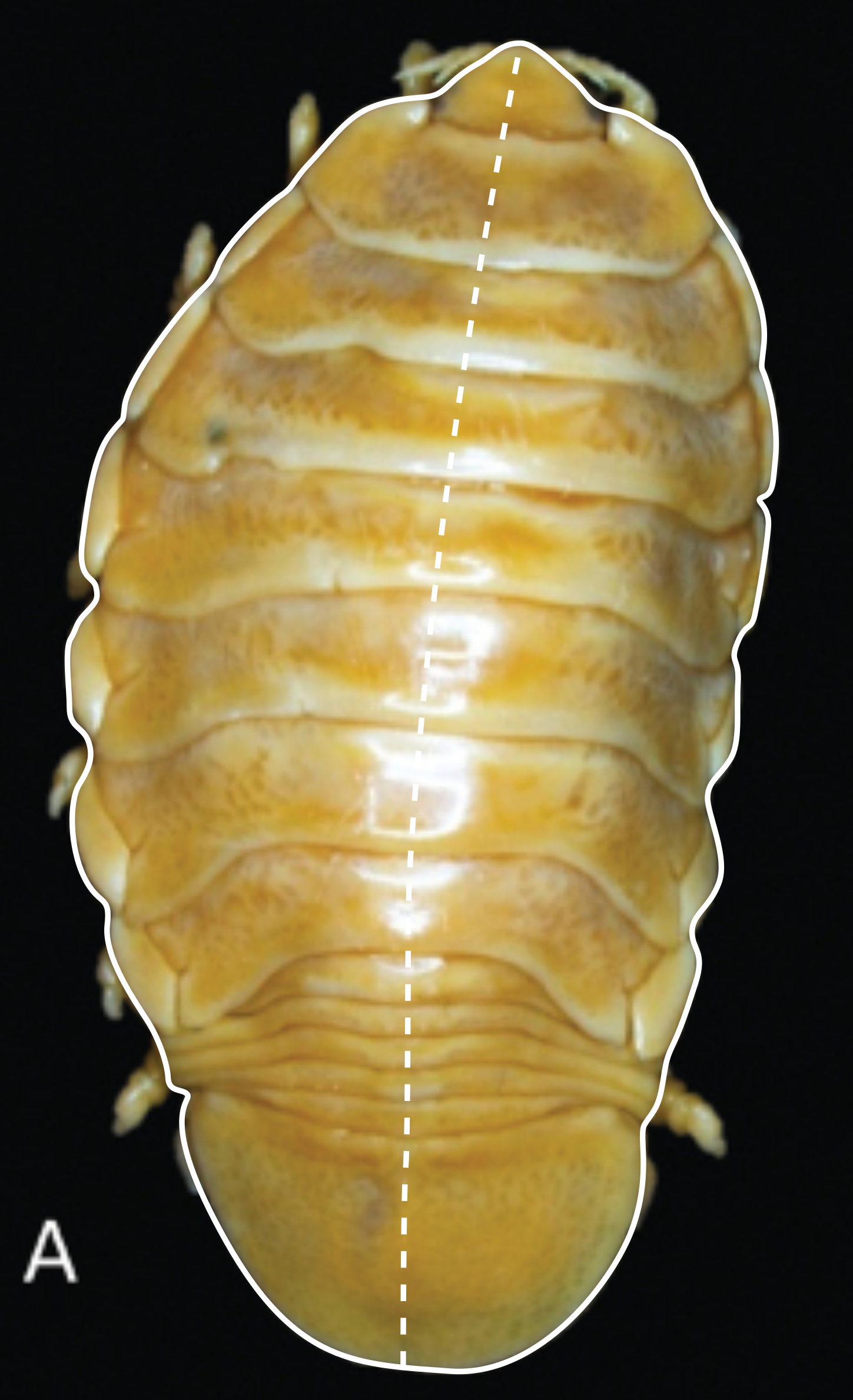
<p>Draw the outline using the Bezier tool. Then draw the midline according to what you see in the base image.</p>

<figure class="image">
    <img src="images/straightening-shapes/straightening_1.png" alt="Outline and midline drawing on the base image. Base image:  *Elthusaacutinasa* sp. from Van der Wal et al. 2019 *ZooKeys*" />
    <figcaption>Outline and midline drawing on the base image. Base image:  *Elthusaacutinasa* sp. from Van der Wal et al. 2019 *ZooKeys*</figcaption>
  </figure>

<h1 id="step-2">Step 2</h1>
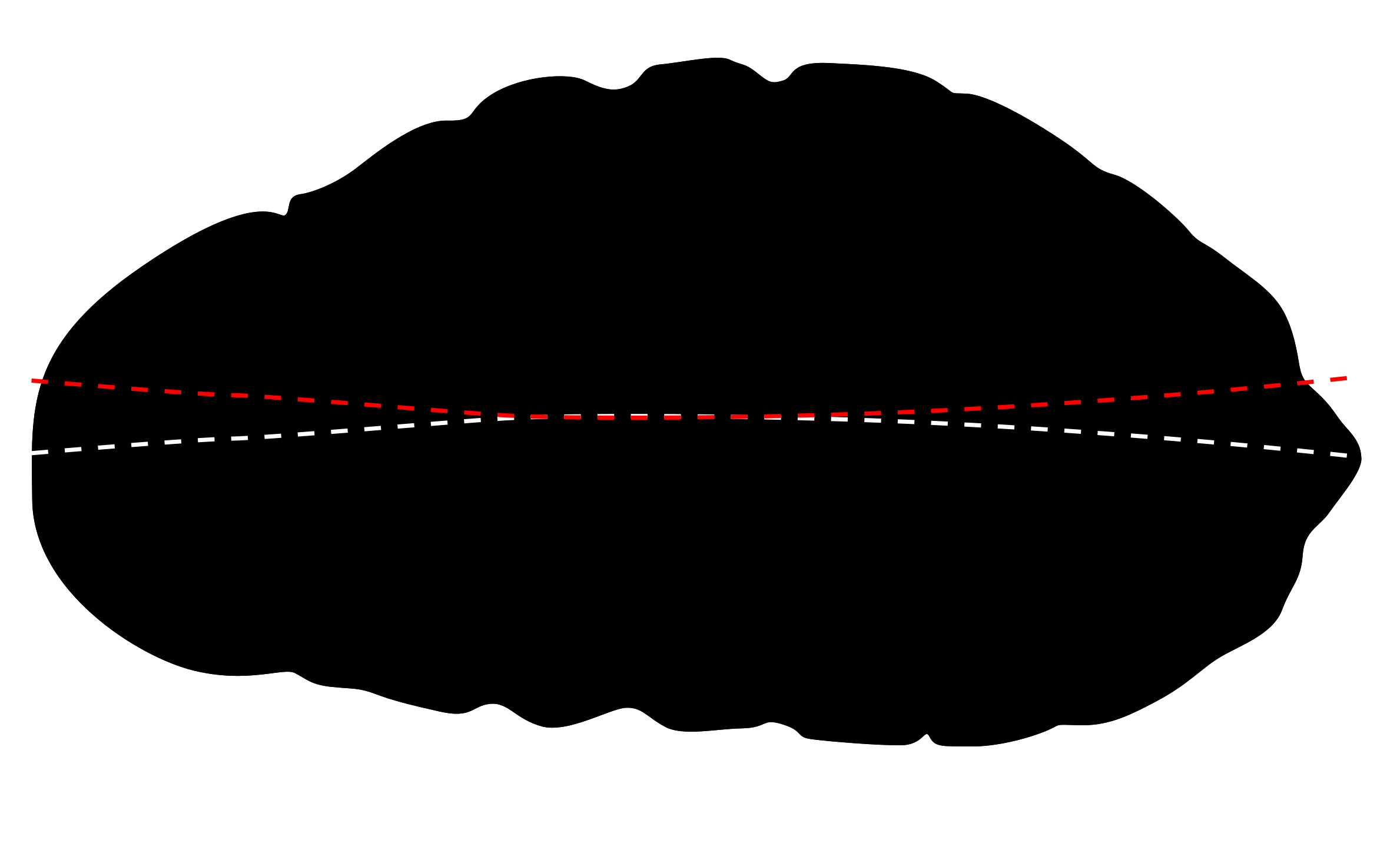
<p>Then rotate the outline and the midline, so that the midline is horuzontal (the ends of the midline should be at the same level).</p>

<figure class="image">
    <img src="images/straightening-shapes/straightening_3.png" alt="Rotated shape and midline" />
    <figcaption>Rotated shape and midline</figcaption>
  </figure>

<h1 id="step-3">Step 3</h1>
<p>Vertically mirror the midline (by pressing “v”) and move the mirrored midline up or down so that the lines are tangents of each other.</p>

<figure class="image">
    <img src="images/straightening-shapes/straightening_3.png" alt="Mirrored and correctly placed midline" />
    <figcaption>Mirrored and correctly placed midline</figcaption>
  </figure>

<h1 id="step-4">Step 4</h1>
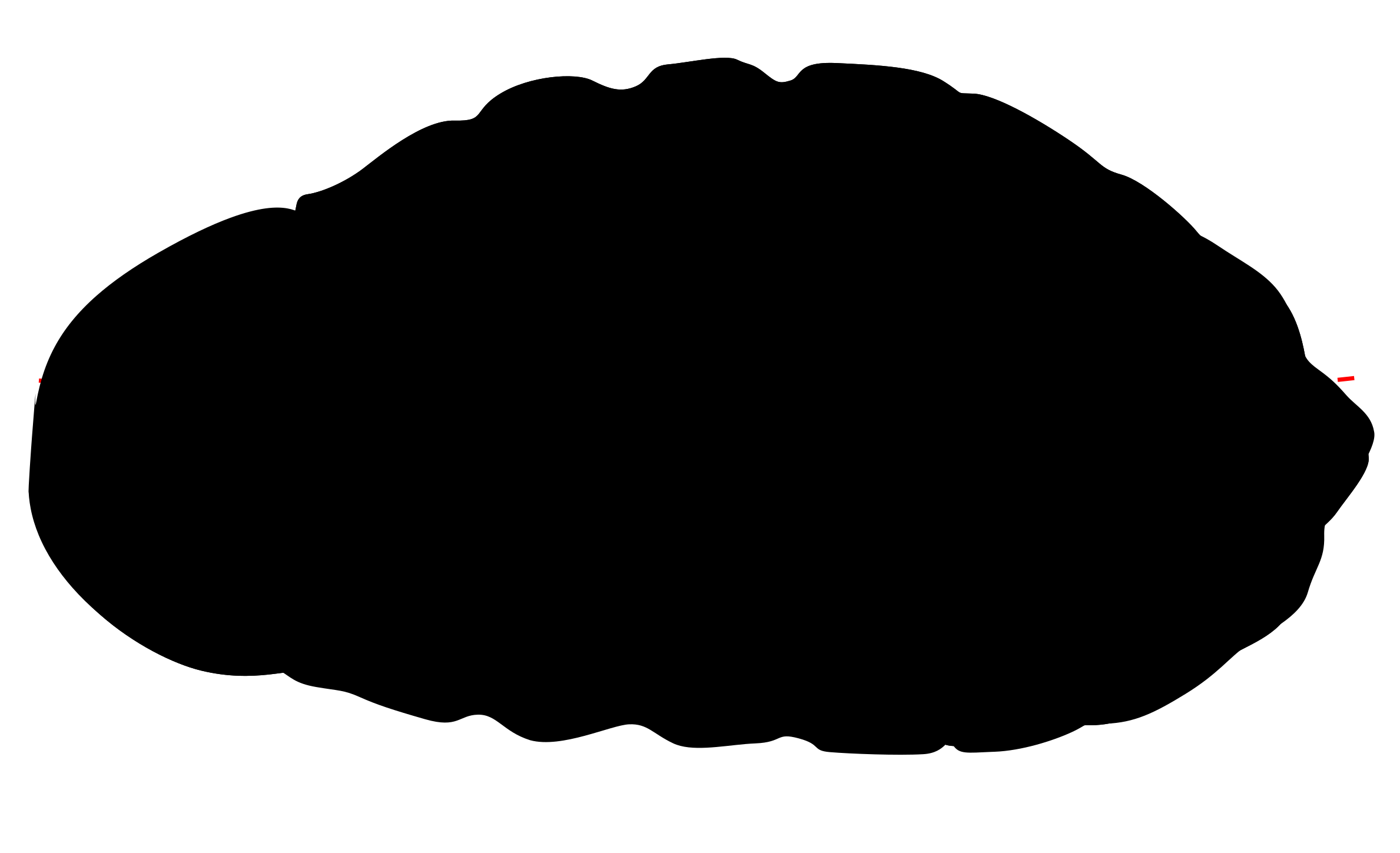
<p>Then select the Bezier tool and adjust its mode to be “Bend from clipboard”. With the bezier tool try to redraw the mirrored midline as precisely as possible. For the end points to correctly align, the snapping behaviour of Inkscape can be used. Another shape should appear by releasing the Bezier tool with a right click.</p>

<figure class="image">
    <img src="images/straightening-shapes/straightening_4.png" alt="Straightened shape on top of the previously drawn objects" />
    <figcaption>Straightened shape on top of the previously drawn objects</figcaption>
  </figure>

<h1 id="step-5">Step 5</h1>
<p>Remove everything but the new shape.</p>

<figure class="image">
    <img src="images/straightening-shapes/straightening_5.png" alt="Straightened shape" />
    <figcaption>Straightened shape</figcaption>
  </figure>

<h1 id="step-6">Step 6</h1>

<p>Do not forget to <strong>set the mode of the Bezier tool back to “none”</strong> when you are done. Otherwise you will regret it later.</p>]]></content><author><name></name></author><category term="vector-graphics" /><summary type="html"><![CDATA[Sometimes you want to straighten the outline of something in order to perform an analysis afterwards. But how would you do that without introducing too much arbitraryness into this process. Here is a solution which only requires you to draw a line onto the midline of the object.]]></summary></entry><entry><title type="html">Container for inverted microscopes</title><link href="/inverse-microscopy-container" rel="alternate" type="text/html" title="Container for inverted microscopes" /><published>2019-06-12T10:19:15+00:00</published><updated>2019-06-12T10:19:15+00:00</updated><id>/inverse-microscopy-container</id><content type="html" xml:base="/inverse-microscopy-container"><![CDATA[<h1 id="construction-manual-for-microscopy-container-for-inverted-fluorescence-microscopes-getting-closer-to-the-objective">Construction manual for microscopy container for inverted fluorescence microscopes (getting closer to the objective)</h1>

<h2 id="purpose">Purpose</h2>
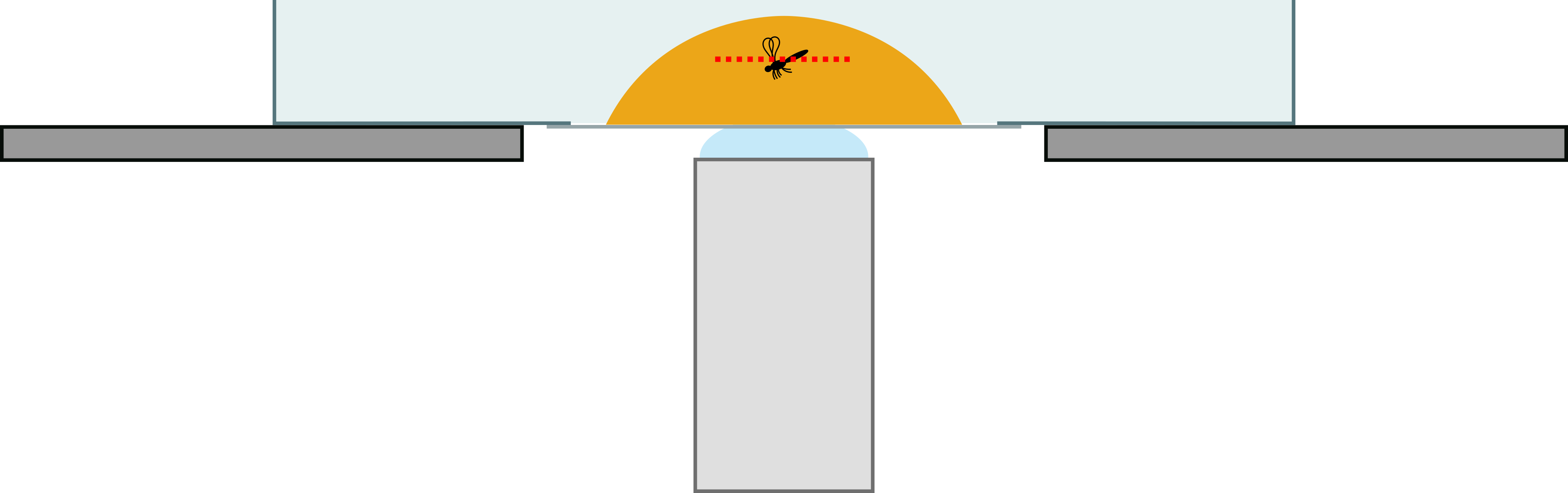
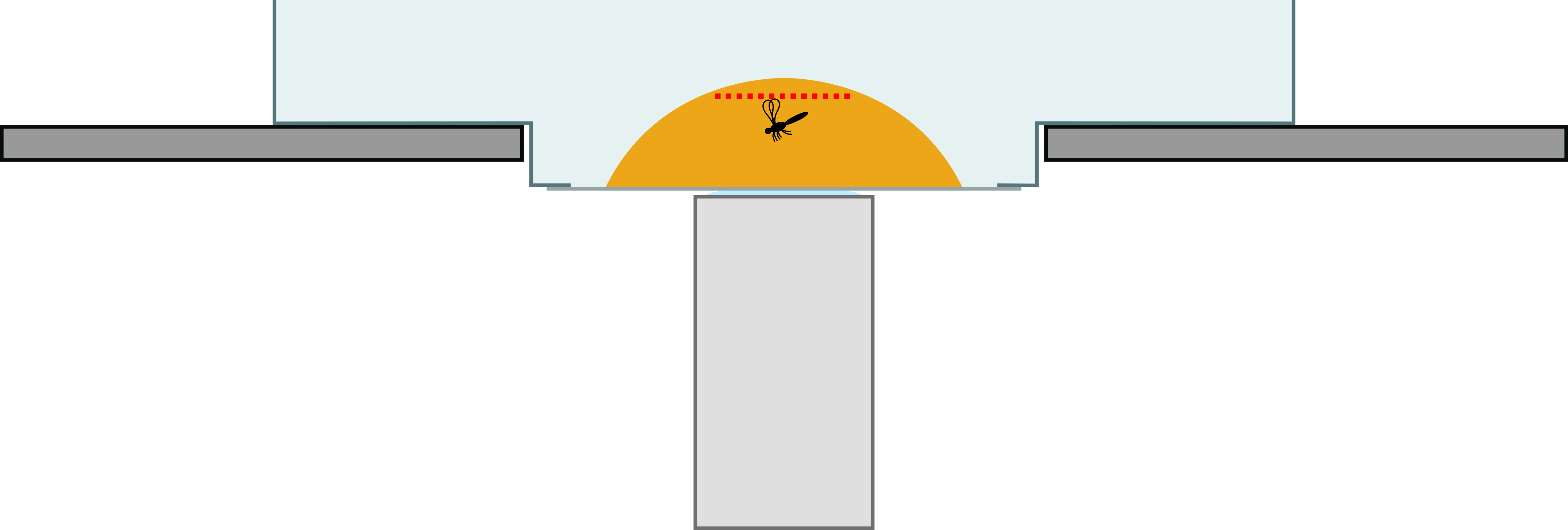
<p>When imaging amber specimens under high magnifications in an inverse microscope (especially using oil immersion), the adjustable focal plane can be limited to an unfortunate amount and the specimen may lie so deep in the resin that the adjustable focal plane does not cover the whole specimen (Figure 1). However, this limit of the focal plane can be created by the design of the microscope rather than by the sheer physical distance between the lens of the objective and the amber piece. To overcome this limitation, a deeper window can be created that is not restricted by the position of the microscope table (Figure 2).</p>

<figure class="image">
    <img src="images/inverse-microscopy-container/without.png" alt="Scheme of the microscopic setup without the special container. Note the position of the focal plane (red dotted line)." />
    <figcaption>Scheme of the microscopic setup without the special container. Note the position of the focal plane (red dotted line).</figcaption>
  </figure>

<figure class="image">
    <img src="images/inverse-microscopy-container/with.png" alt="Scheme of the microscopic setup with the special container. Note the position of the focal plane (red dotted line)." />
    <figcaption>Scheme of the microscopic setup with the special container. Note the position of the focal plane (red dotted line).</figcaption>
  </figure>

<h2 id="what-is-needed">What is needed?</h2>
<ul>
  <li>regular sized plastic petri dish</li>
  <li>smaller plastic petri dish that fits through the opening of the microscopy table</li>
  <li>extra large cover slips (more than are actually needed, tend to break)</li>
  <li>silicone and a dispenser for it</li>
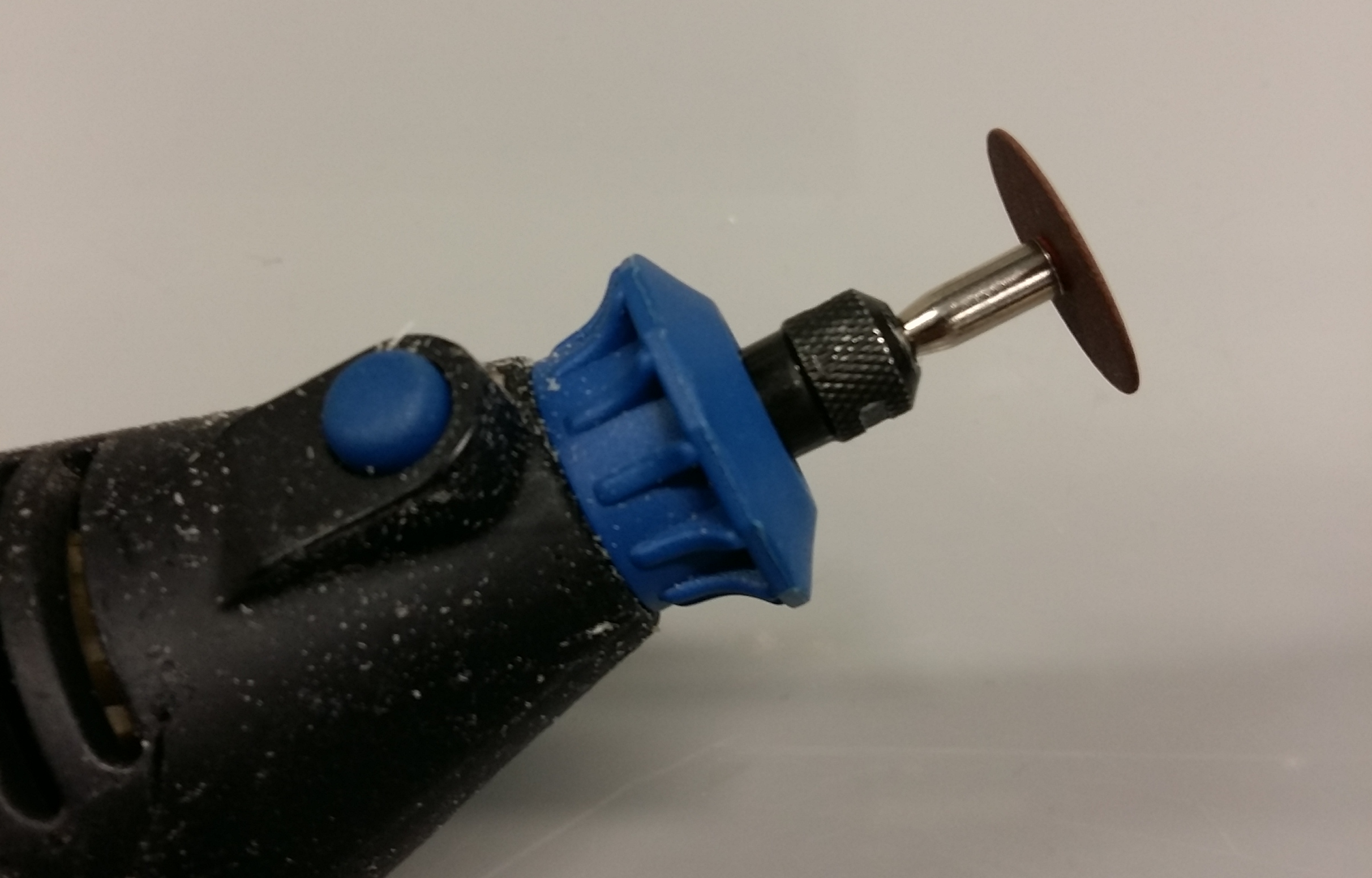
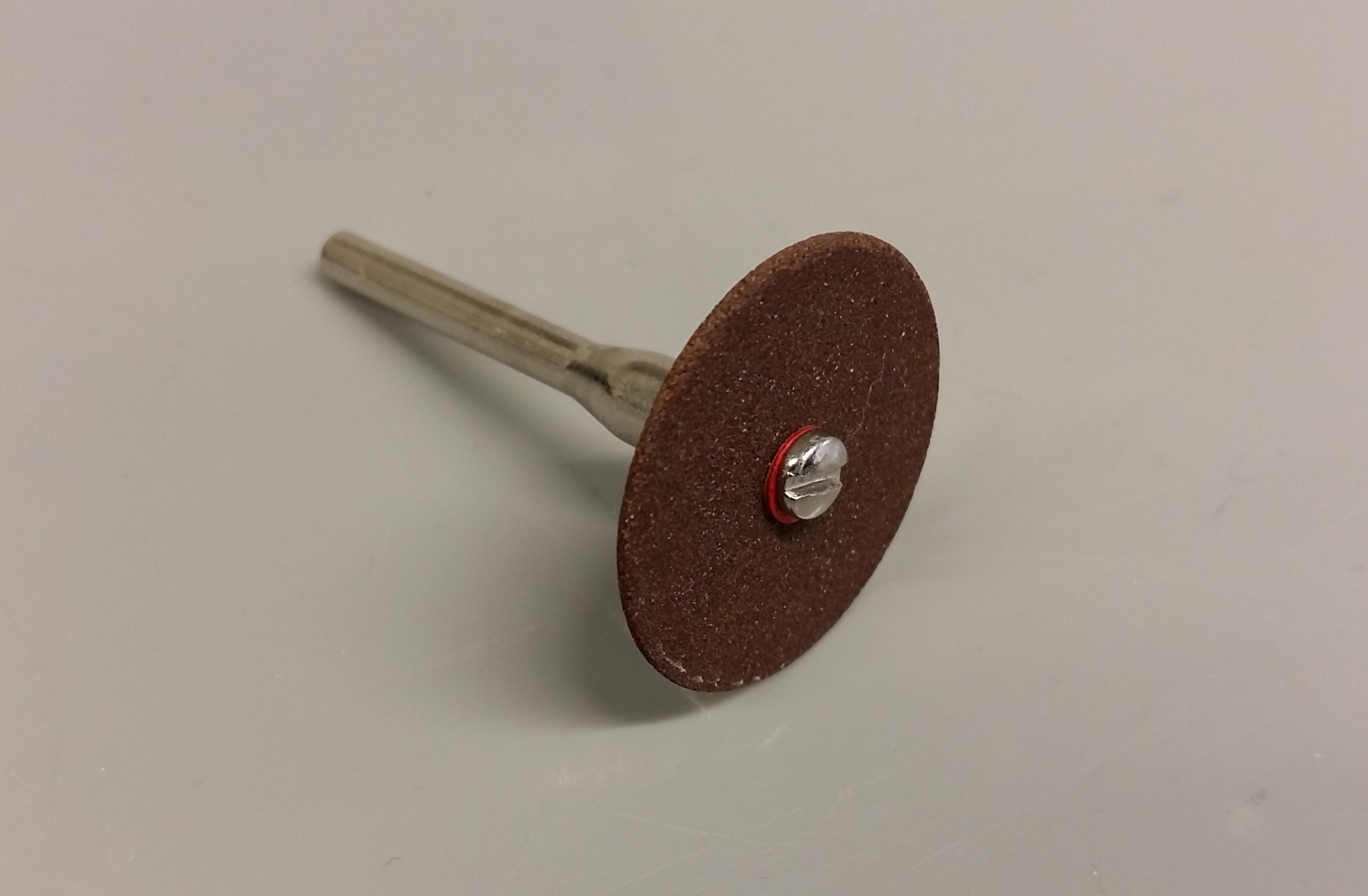
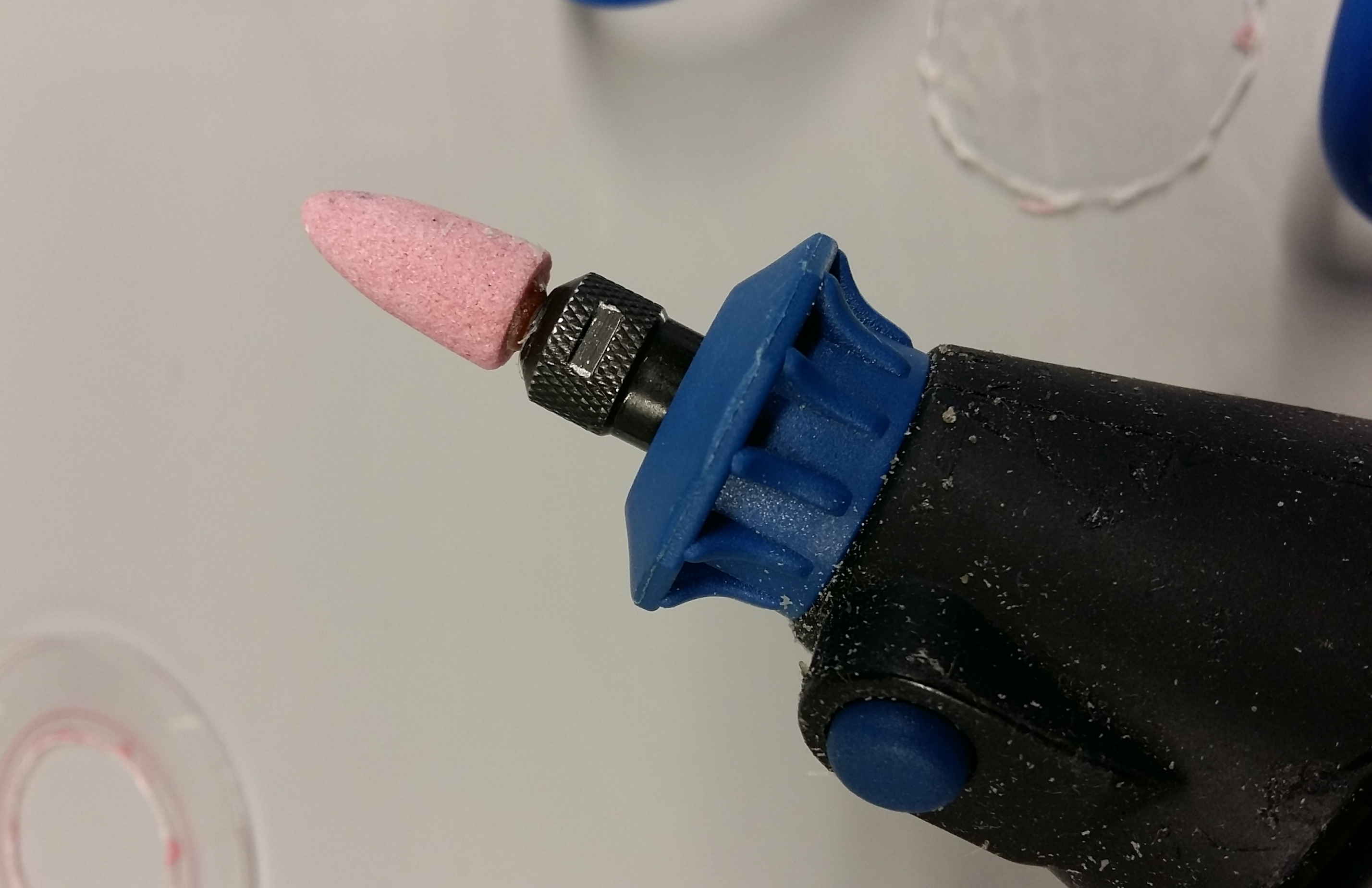
  <li>a multipurpose rotary tool with cutting and grinding attachments</li>
  <li>diamond pen (for carving or writing on glass)</li>
  <li>a thin permanent marker</li>
  <li>a piece of regular printer paper</li>
</ul>

<figure class="image">
    <img src="images/inverse-microscopy-container/20190612_154509.png" alt="Cutting attachment." />
    <figcaption>Cutting attachment.</figcaption>
  </figure>

<figure class="image">
    <img src="images/inverse-microscopy-container/20190612_154354.png" alt="Cutting attachment." />
    <figcaption>Cutting attachment.</figcaption>
  </figure>

<figure class="image">
    <img src="images/inverse-microscopy-container/20190612_160254.png" alt="Rotary tool with grinding attachment." />
    <figcaption>Rotary tool with grinding attachment.</figcaption>
  </figure>

<h2 id="step-1">Step 1</h2>
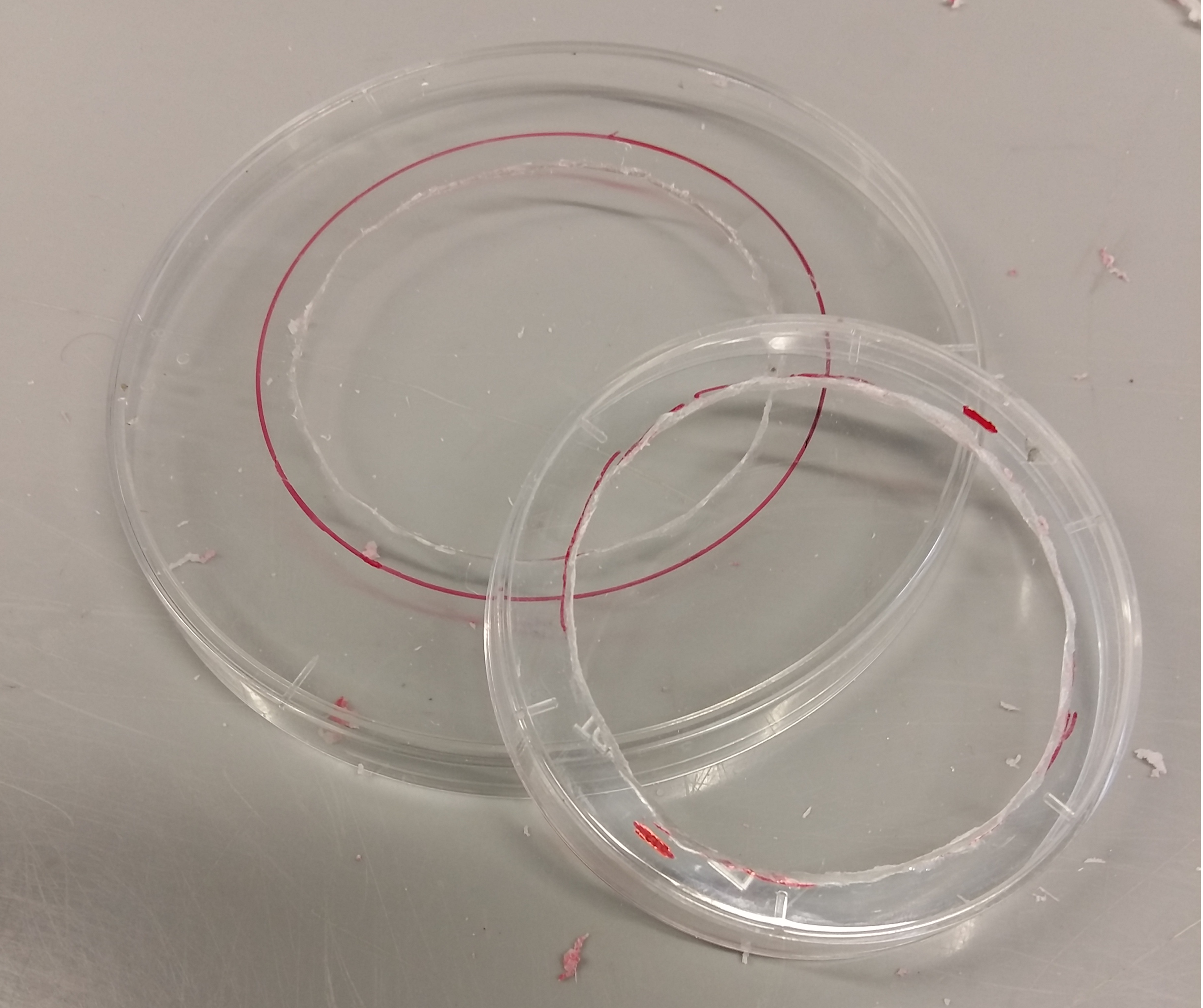
<p>Place the smaller petri dish on the larger one and draw the outline of the smaller one onto the larger one. Then draw a smaller circle inside the outline (just enough smaller to leave a margin for the smaller one to be placed onto the larger petri dish, see later pictures). Then cut along the smaller circle with the rotary tool and remove the burr afterwards using the grinding attachment of the rotary tool.</p>

<figure class="image">
    <img src="images/inverse-microscopy-container/20190612_155214.png" alt="Reference for the opening in the larger petri dish." />
    <figcaption>Reference for the opening in the larger petri dish.</figcaption>
  </figure>

<figure class="image">
    <img src="images/inverse-microscopy-container/20190612_155306.png" alt="Outline for the opening in the larger petri dish." />
    <figcaption>Outline for the opening in the larger petri dish.</figcaption>
  </figure>

<figure class="image">
    <img src="images/inverse-microscopy-container/20190612_155516.png" alt="Opening in the larger petri dish." />
    <figcaption>Opening in the larger petri dish.</figcaption>
  </figure>

<h2 id="step-2">Step 2</h2>
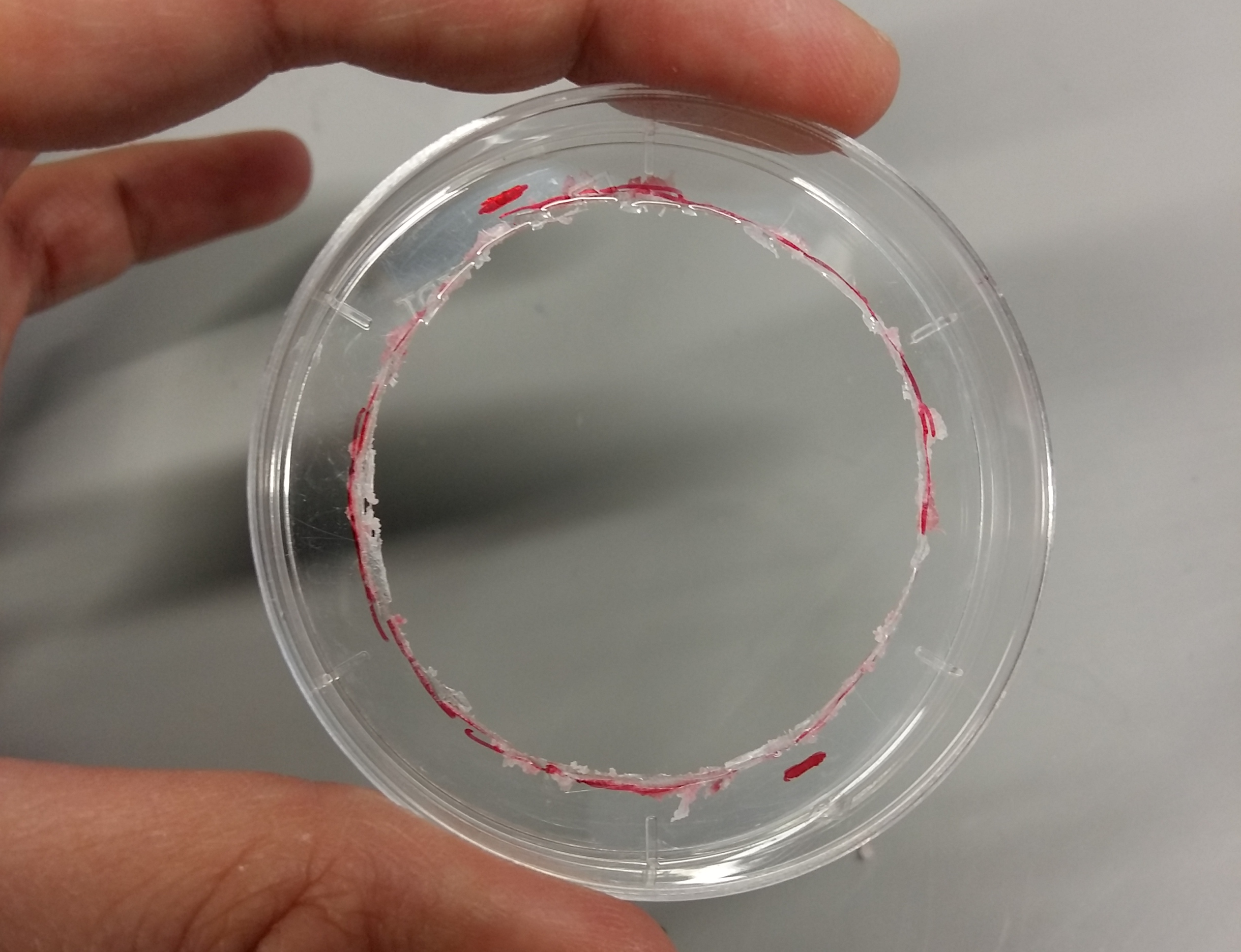
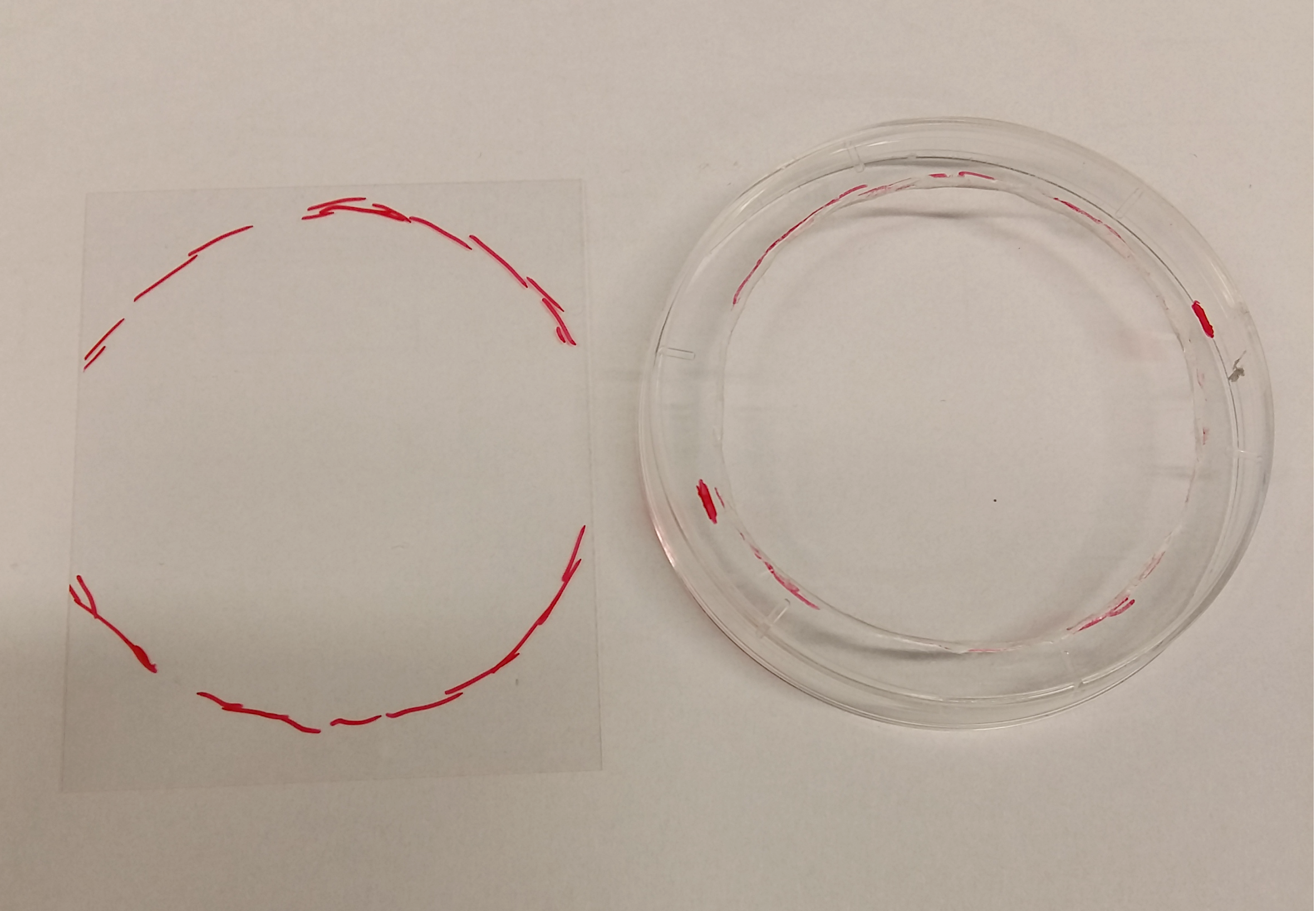
<p>If your cover slips are smaller than the diameter of the smaller petri dish, mark the size of the cover slip onto the small petri dish. Draw a circle on the bottom of the petri dish (smaller than the smallest side of the cover slip). Use the rotary tool to cut out a hole into the bottom of the petri dish (along the circle), remove the burr.
By now you should have a small and a large petri dish with each a circular hole in the bottom.</p>

<figure class="image">
    <img src="images/inverse-microscopy-container/20190612_155620.png" alt="Checking the size of the cover slip." />
    <figcaption>Checking the size of the cover slip.</figcaption>
  </figure>

<figure class="image">
    <img src="images/inverse-microscopy-container/20190612_155759.png" alt="Outline of the opening in the smaller cover slip. Note the markings of the cover slip size." />
    <figcaption>Outline of the opening in the smaller cover slip. Note the markings of the cover slip size.</figcaption>
  </figure>

<figure class="image">
    <img src="images/inverse-microscopy-container/20190612_160005.png" alt="Opening in the smaller petri dish." />
    <figcaption>Opening in the smaller petri dish.</figcaption>
  </figure>

<figure class="image">
    <img src="images/inverse-microscopy-container/20190612_160830.png" alt="Openings in both petri dishes." />
    <figcaption>Openings in both petri dishes.</figcaption>
  </figure>

<h2 id="step-3">Step 3</h2>
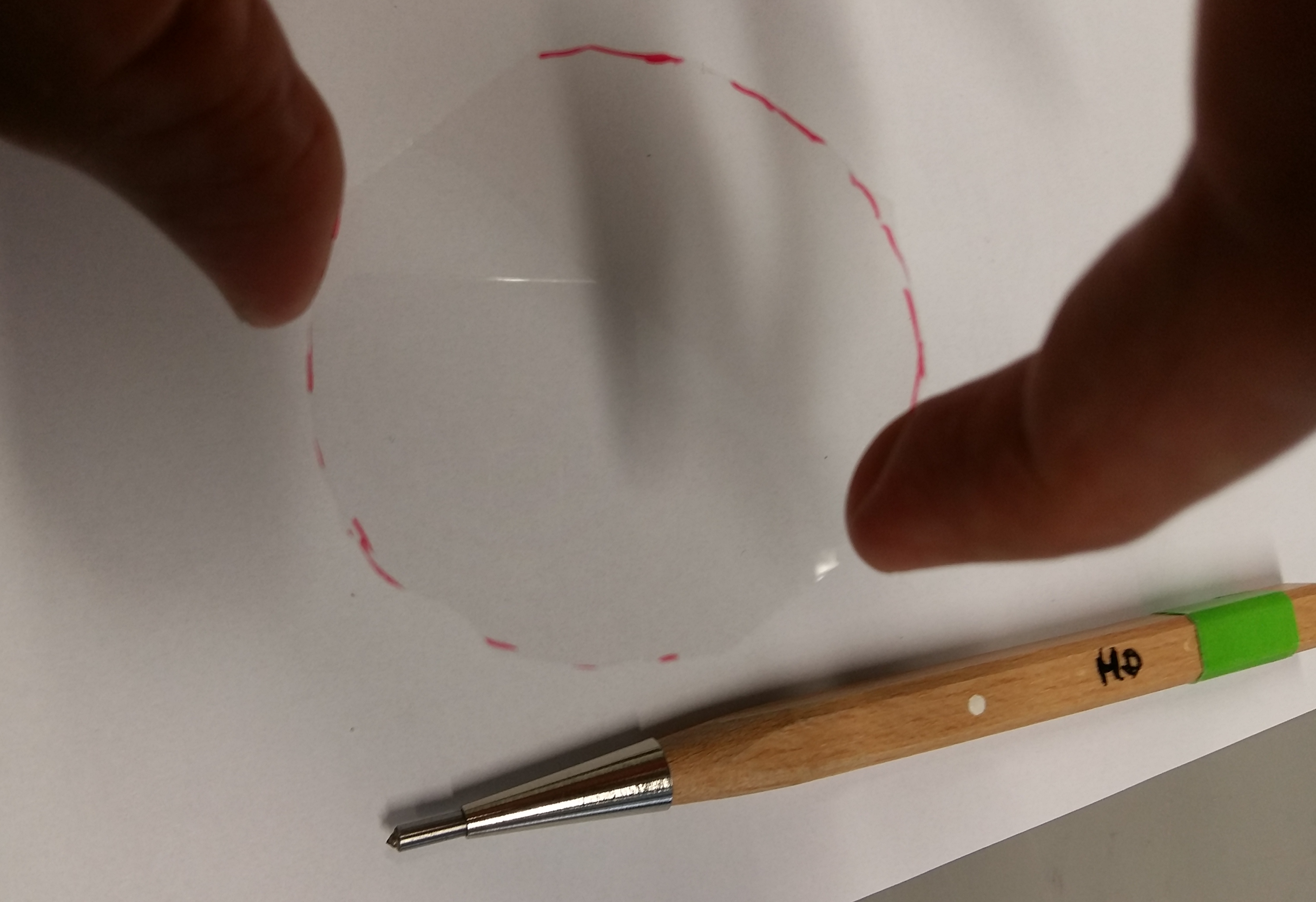
<p>Use the permanent marker to draw a circle that is larger than the hole in the smaller petri dish but smaller than the outline of the same petri dish. Place the cover slip on a piece of paper (not on a paper towel!). Scratch along the circular marking. Check the result by looking at the reflection pattern. Gently break the glass along the scratches. You may need a few attempts for this. The cover slip should now fit on the bottom of the petri dish without overlapping.</p>

<figure class="image">
    <img src="images/inverse-microscopy-container/20190612_161937.png" alt="Marking the desired outline of the cover slip." />
    <figcaption>Marking the desired outline of the cover slip.</figcaption>
  </figure>

<figure class="image">
    <img src="images/inverse-microscopy-container/20190612_162150.png" alt="Resulting cover slip and diamond pen in the background." />
    <figcaption>Resulting cover slip and diamond pen in the background.</figcaption>
  </figure>

<h2 id="step-4">Step 4</h2>
<p>Glue the cover slip onto the underside of the bottom of the smaller petri dish using the silicone. For this , apply a ring of silicone and press the cover slip gently on top of it, so that a broad contact emerges between the cover slip and the silicone. Remove superstitious silicone without getting silicone onto the critical area of the cover slip.</p>

<figure class="image">
    <img src="images/inverse-microscopy-container/20190612_162524.png" alt="Ring of silicone on the underside of the smaller petri dish." />
    <figcaption>Ring of silicone on the underside of the smaller petri dish.</figcaption>
  </figure>

<figure class="image">
    <img src="images/inverse-microscopy-container/20190612_162849.png" alt="Cover slip pressed on the ring of silicone on the underside of the smaller petri dish." />
    <figcaption>Cover slip pressed on the ring of silicone on the underside of the smaller petri dish.</figcaption>
  </figure>

<h2 id="step-5">Step 5</h2>
<p>Apply a ring of silicone on the underside of the larger petri dish next to the opening and then place the small petri dish onto it. Seal the connection between the two petri dishes (you may need to apply more silicone). Let the whole object dry over night and test whether it is really waterproof or small leakages have to be sealed with silicone.</p>

<figure class="image">
    <img src="images/inverse-microscopy-container/20190612_163254.png" alt="Finished container from the underside." />
    <figcaption>Finished container from the underside.</figcaption>
  </figure>

<figure class="image">
    <img src="images/inverse-microscopy-container/20190612_163352.png" alt="Finished container from the upper side." />
    <figcaption>Finished container from the upper side.</figcaption>
  </figure>]]></content><author><name></name></author><category term="microscopy" /><category term="hardware" /><summary type="html"><![CDATA[Construction manual for microscopy container for inverted fluorescence microscopes (getting closer to the objective)]]></summary></entry></feed>